Encountering the “Device Signature Expired” error when accessing OpenClaw remotely can be frustrating, especially for users relying on SSH tunnels or the Web GUI from different machines. This guide will walk you through the steps to identify and resolve this issue effectively.
Understanding the Error
The “Device Signature Expired” error typically arises due to discrepancies in time settings between your local machine and the OpenClaw server. Accurate time synchronization is crucial for secure connections and system functionality.
Prerequisites
Before you begin, ensure you have:
- Access to your OpenClaw server via SSH.
- Basic knowledge of command-line operations.
- Administrator privileges on your local machine to change time settings.
Reopen the SSH Tunnel
Start by reopening the SSH tunnel window that connects to your OpenClaw server. This is essential for executing commands directly on the server.
Check the Server Time
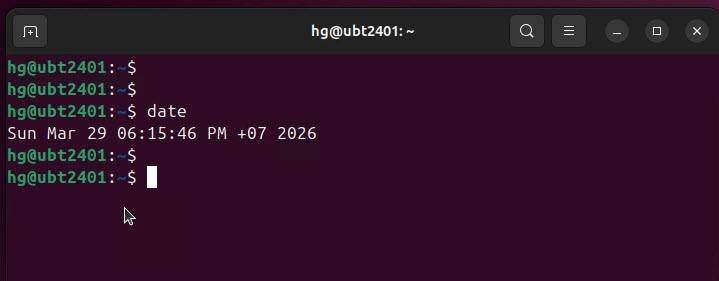
Once connected, check the current date and time on the server by entering the following command:
dateThis command will display the server’s current date and time. Make a note of the timezone and ensure it is set correctly.
For instance, if the output shows UTC+7, verify that this is the desired timezone.
Enable NTP Synchronization
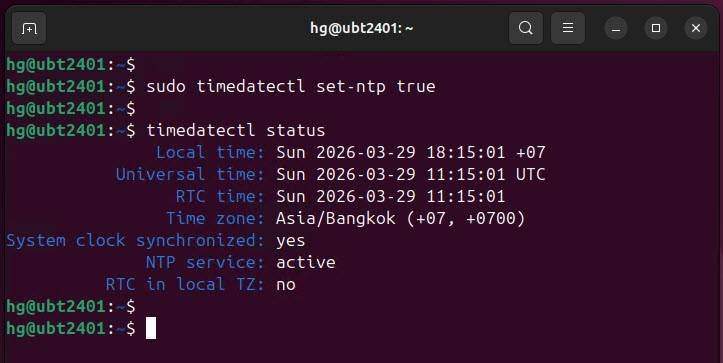
If the server time is incorrect, you can enable NTP (Network Time Protocol) synchronization to maintain accurate time. On Ubuntu, run the following command:
sudo timedatectl set-ntp trueAfter enabling NTP, check the status to confirm synchronization:
timedatectl statusIf the NTP service is active, your server’s time should now be accurately synchronized.
Check Local Time Settings
Next, switch to your Windows machine and check its current time settings:
Start - Settings - Time & language - Dates & timeEnsure the timezone matches that of your OpenClaw server.
For example, if your server is set to UTC+7, your Windows machine should also be configured to the same timezone.
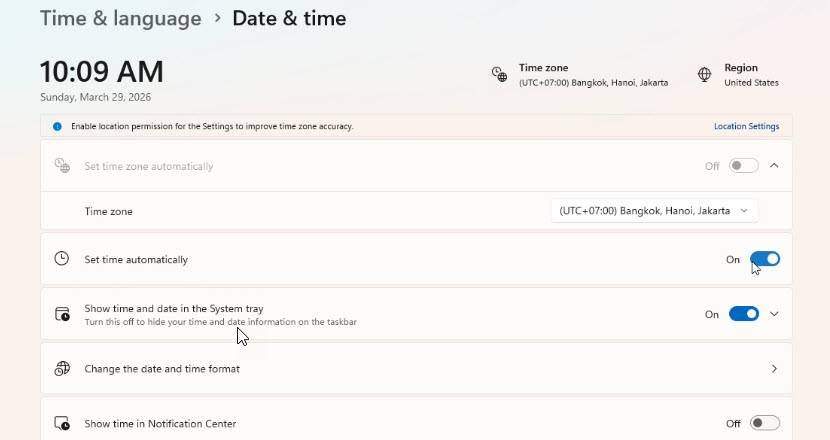
After making these changes, your local machine’s time should now align with that of the OpenClaw server.
Test the Connection
Finally, return to your browser and attempt to access OpenClaw again. If you have followed these steps correctly, the “Device Signature Expired” error should be resolved.
Troubleshooting Common Mistakes
Here are some common mistakes to avoid while troubleshooting this error:
- Not checking the server time after enabling NTP.
- Failing to change the timezone on your local machine.
- Overlooking the need to resynchronize the local system time.
Conclusion
By following these steps, you should be able to fix the “Device Signature Expired” error in OpenClaw efficiently. If you continue to experience issues, consider reaching out for help in the comments or checking additional resources. Thank you for reading, and stay tuned for more tutorials on securely accessing OpenClaw remotely!
Read more
- How to Access the OpenClaw Dashboard from ANYWHERE
- Installing OpenClaw on Ubuntu Linux
- Enable Windows Subsystem for Linux (WSL) on Windows
- Top 10 Linux Server Management Tools for Efficient Administration
- Guide to Installing n8n Server on Ubuntu Using Docker