Understanding the Pairing Required Error in OpenClaw
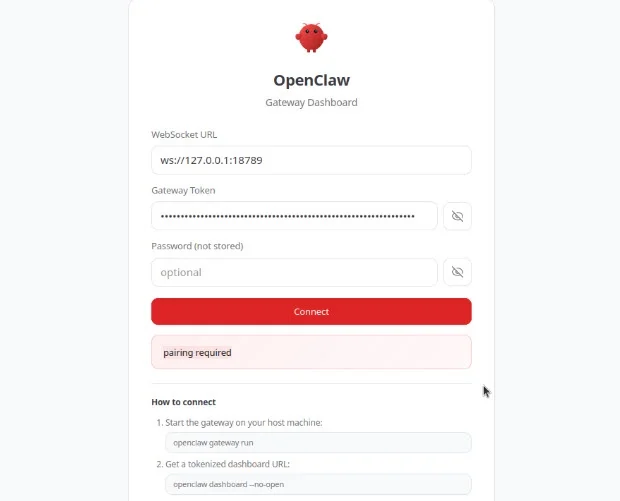
If you have ever tried accessing OpenClaw and suddenly encountered the “Pairing required” error, you know how frustrating it can be. This error can completely block access, even if everything was working fine before.
Identifying Your OpenClaw Container
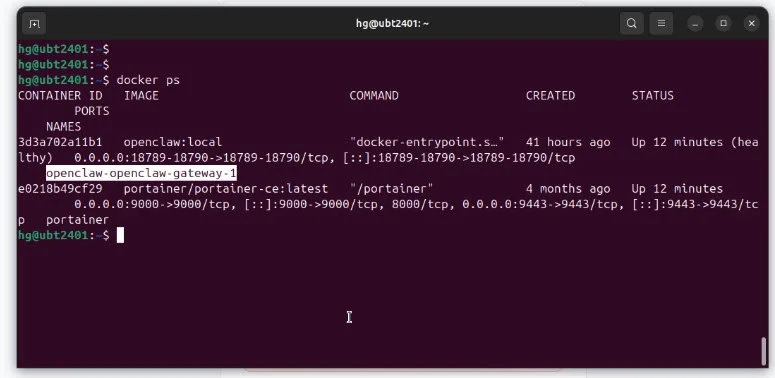
To resolve this issue, start by opening your terminal. The first step is to find the container name of your OpenClaw setup.
docker psLook for the container related to OpenClaw and note its name from the name column. This name is essential for the following commands.
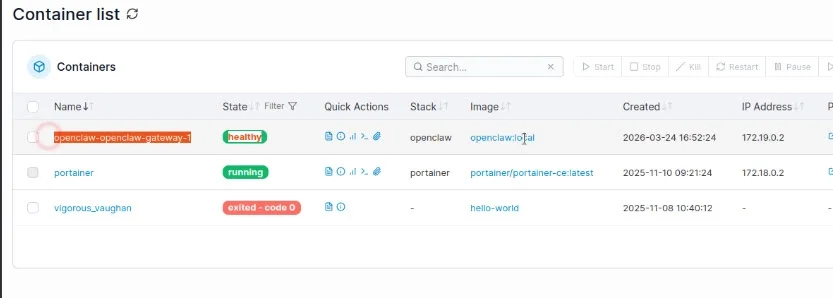
If you prefer a visual method, you can use Portainer to check your containers. This approach is simpler, especially if you are not comfortable using the command line.
Read more: How to Install Docker and Portainer on Linux Ubuntu/Debian
Listing Devices Connected to OpenClaw
After identifying your OpenClaw container, copy its container name. Replace the placeholder in the commands below with your actual container name.
Run this command to list all devices currently connected to OpenClaw, including those pending and approved:
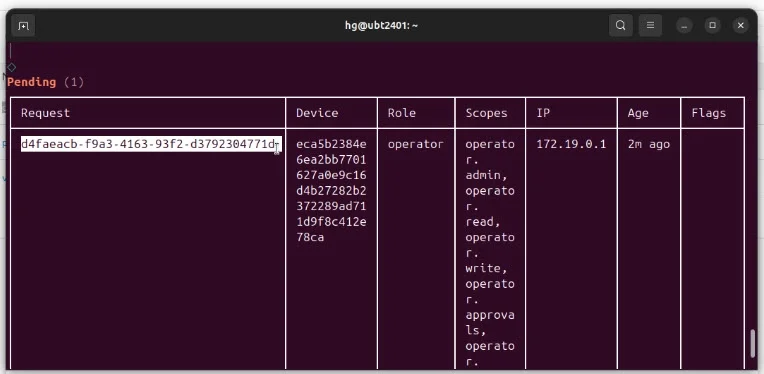
docker exec -it Openclaw-Container_Name node dist/index.js devices listThis command displays devices and their pairing status. If your device appears with a Pending status, it means the pairing process is incomplete, causing the pairing required error.
Approving the Pending Device
Locate the Request ID of the device in the Pending state. This ID is necessary to approve the device.
Use the following command to approve the device by replacing Request_ID and [OpenClaw_Container_Name] with your values:
docker exec -it Openclaw-Container_Name node dist/index.js devices approve REQUEST_IDExecuting this command will change the device status from Pending to Approved.
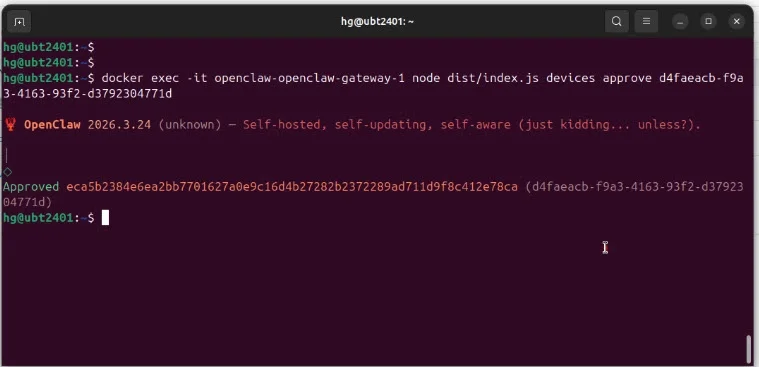
Verifying the Pairing Status
To confirm that the device is now paired, run the list command again:
docker exec -it Openclaw-Container_Name node dist/index.js devices listYour device should now show as Paired, indicating the issue is resolved.
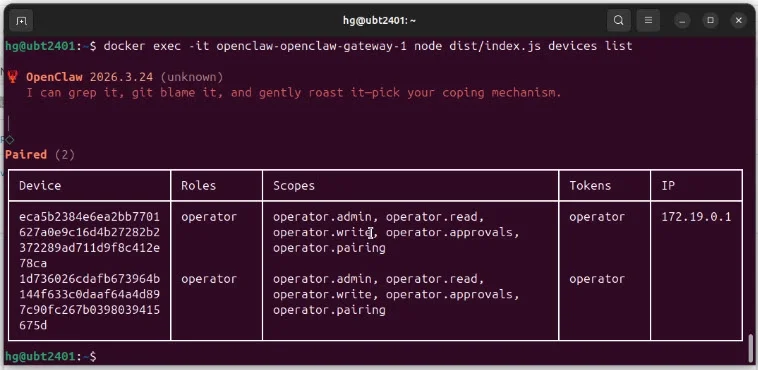
Conclusion
By following these simple steps, you can quickly fix the pairing required error in OpenClaw and restore access without hassle. This straightforward method saves time and avoids potential frustration.
If you found this guide helpful, consider supporting the community by liking and subscribing to relevant channels for more troubleshooting tips.