If you’re new to n8n and unsure about which nodes to utilize, this article is tailored for you. We will delve into some of the most popular nodes within n8n, explaining their functions, advantages, and how to choose the right nodes for effective automation workflows. From simple actions like sending emails to complex tasks such as API calls and conditional processing, n8n has the solutions you need.
What is a Node in n8n?
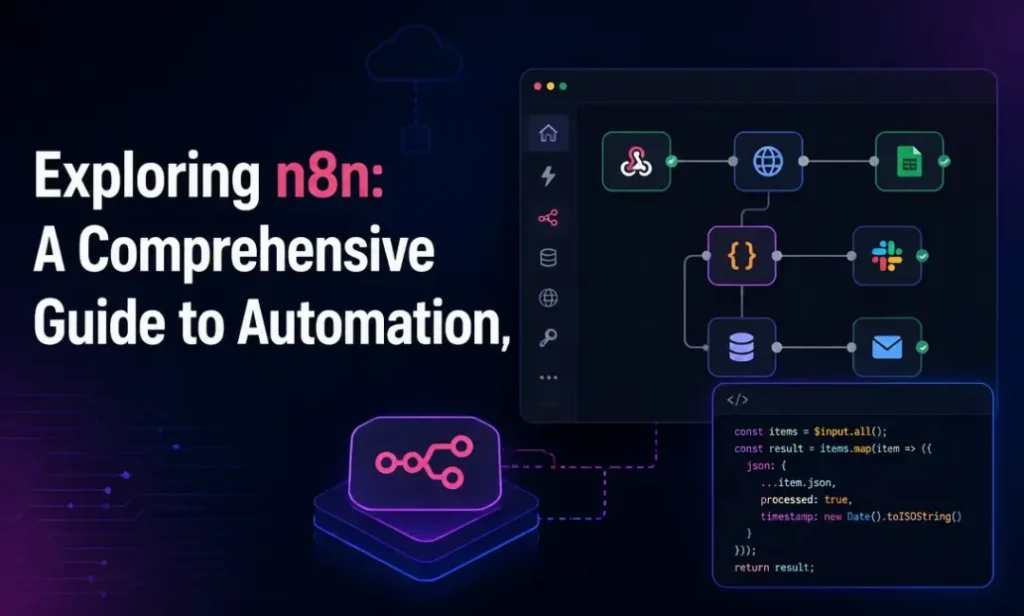
A node in n8n is the fundamental component of an automation workflow. Each node represents a specific action, such as sending an email, making an API call, or interacting with external services like Google Sheets, Slack, or Airtable. You can think of a node as an “action block” that links together to form an automated process. n8n currently supports over 350 built-in node types, enabling users to connect and manipulate hundreds of applications with minimal coding.
How Nodes Operate in Automation Workflows
Every n8n workflow consists of a sequence of nodes linked in a logical order. When a node is triggered (usually by an initial node like a Webhook), it performs the defined action and passes data to the subsequent node. Nodes operate based on the principle of input, processing, and output. For instance, the HTTP Request node will receive data from the previous node, send a request to an API, and return the results to the next node. This structured organization allows you to build complex workflows visually and efficiently control them. Nodes act like “mini-brains” at each step of the process, helping to handle, analyze, condition, and operate data as desired.
Top 10 Most Popular Nodes in n8n
When starting with n8n, users will encounter a variety of nodes, making it challenging to select the right ones. However, several nodes are frequently used due to their flexibility, versatility, and ease of configuration. Below is a detailed list of the ten most favored nodes, complete with practical examples, advantages, and how to use them:

1. HTTP Request Node – Flexible API Communication
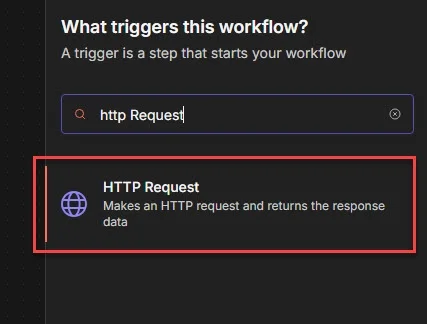
This is the most popular node in n8n as it allows connections to any system or platform that supports APIs. You can use it to send or receive data from third-party services like Shopify, OpenAI, Notion, or your internal business systems.
- How it works: Enter the URL, select the method (GET, POST, PUT, DELETE, etc.), and configure headers and body as needed. Input data from the previous node can be dynamically used to set the endpoint or content being sent.
- Advantages: Highly flexible, compatible with any API, diverse configuration options.
- Disadvantages: Requires basic understanding of REST APIs; prone to errors if headers/body are misconfigured.
Use this node when you want to enhance your workflow’s integration capabilities without being limited by existing nodes.
2. Webhook Node – Triggering Workflows from External Events
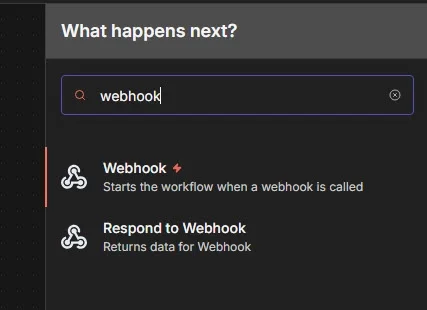
The Webhook node acts as a trigger in n8n, designed to initiate a workflow immediately upon receiving an external event such as a form submission, button click, or webhook from another system.
- How it works: Create a Webhook URL and configure the HTTP method (POST, GET, etc.). When data is sent to this URL, the workflow will execute.
- Advantages: Real-time processing, extremely fast, easy to integrate with external systems.
- Disadvantages: Requires knowledge of the data structure being sent; not suitable for internal triggers.
This node is essential if you aim to build a real-time system or integrate external services into n8n.
3. Code Node – Custom Logic with JavaScript
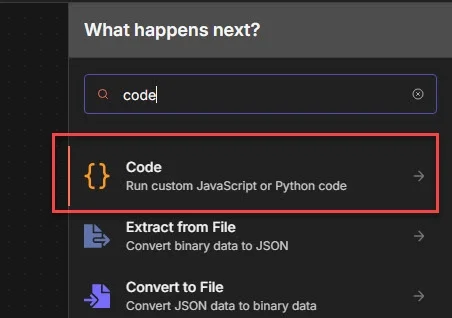
The Function node allows you to write JavaScript code to process data in ways that the existing nodes do not support.
- How it works: It receives input from the previous node. You can write logic to concatenate strings, check conditions, transform formats, and return processed data to the next node.
- Advantages: Maximum customization, capable of handling complex logic, robust.
- Disadvantages: Requires knowledge of JavaScript; prone to errors if syntax is incorrect.
This node is ideal for those with basic programming knowledge, helping to extend data processing capabilities within n8n.
4. Edit Fields (Set) Node – Creating or Modifying Intermediate Data
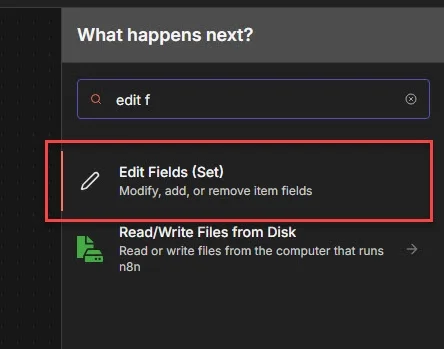
A simple yet extremely useful node. It helps you create new data fields, modify values, or remove unnecessary fields before data proceeds further.
- How it works: Specify each field you want to keep or create, then configure the value for each field.
- Advantages: Simple, fast, and effective in editing intermediate data.
- Disadvantages: Cannot process complex logic; only suitable for basic operations.
This commonly used node in n8n serves to clean data between steps in the workflow.
5. Split In Batches Node – Processing Data in Batches
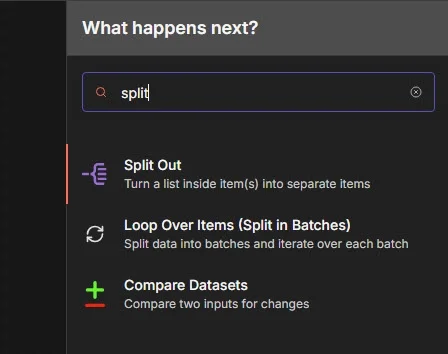
If you are working with lengthy data lists (e.g., 1000 orders), this node helps you split them into smaller groups for gradual processing, avoiding timeouts or system bottlenecks.
- How it works: Splits data into batches of a specified size (e.g., 10 items per batch).
- Advantages: Useful for processing large datasets, prevents overload.
- Disadvantages: Can be confusing during debugging; must be combined with loops or auxiliary nodes.
This is the ideal solution for handling large volumes of data within automation workflows.
6. IF Node – Logic Branching Conditions
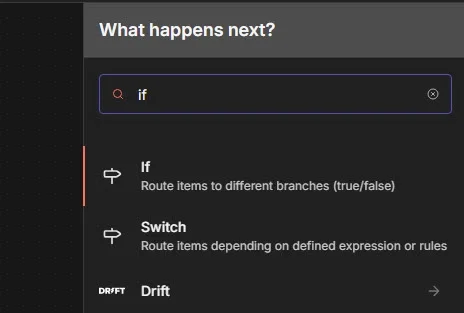
The IF node functions like an if…else statement in programming, allowing you to branch processing according to specific conditions.
- How it works: Checks specific values, e.g., “order total > 2 million” → process in branch A, otherwise branch B.
- Advantages: Clear logic, easy to visualize, simple branching.
- Disadvantages: Difficult to extend for complex conditions; may require additional Functions for more intricate logic.
This node helps your workflows operate more flexibly and intelligently.
7. Send Email Node – Automated Email Sending
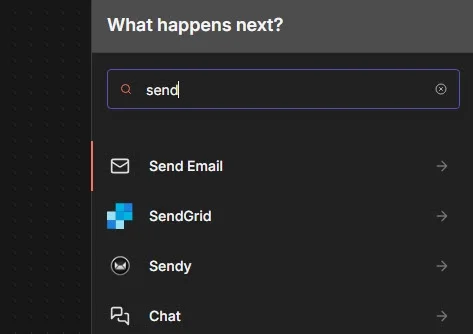
This is one of the most popular nodes in n8n that automates the process of sending emails, integrating with SMTP, Gmail, Outlook, Mailgun, and more.
- How it works: Enter the recipient, subject, and content (which can be plain text or HTML), and attach files if necessary.
- Advantages: Easy to configure, supports multiple providers, quick automated email sending.
- Disadvantages: May face sending limits (rate limits); can occasionally be filtered as spam without DKIM/SPF authentication.
This essential node is crucial for setting up notification systems, customer care, or error alerts.
8. Delay (Wait) Node – Pausing Actions Temporarily
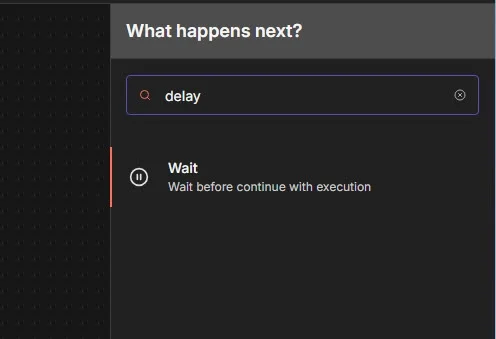
Not all actions need to occur immediately. The Delay node allows you to wait for a specified period before proceeding to the next step.
- How it works: Choose a delay mode for a specific duration (e.g., 5 minutes, 1 hour) or a dynamic calculation based on data.
- Advantages: Useful for spacing out actions, preventing system spamming.
- Disadvantages: Slows down the workflow; should not be overused in real-time processes.
Very handy in nurturing scenarios, retrying APIs, or spacing actions.
9. Google Sheets Node – Writing Data to Spreadsheets
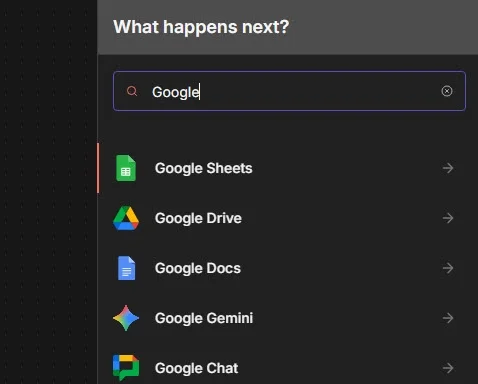
This node allows you to interact directly with Google Sheets—a popular spreadsheet tool for data storage and sharing.
- How it works: Connect your Google account, select a sheet, and perform actions such as adding rows, updating cells, or searching for values.
- Advantages: User-friendly, suitable for non-technical users.
- Disadvantages: Slower with larger files; can easily hit quota limits if using multiple accounts.
Easy to use, ideal for those unfamiliar with databases who prefer managing information via Google Sheets.
10. MySQL/PostgreSQL Node – Connecting and Interacting with Databases
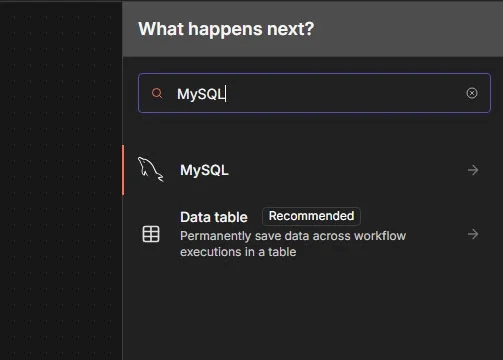
For backend developers or data managers, the database connection node enables you to execute SQL queries directly within workflows.
- How it works: Connect to the DB server and input SQL commands to read, write, or update data.
- Advantages: Fast data retrieval, direct interaction with professional databases.
- Disadvantages: Requires precise SQL writing; can be risky if commands like DELETE or UPDATE are misused.
This node is ideal for professional systems needing to connect with internal databases or external services.
How to Choose the Right Nodes for Your Needs
When constructing automated workflows in n8n, selecting the right nodes according to your specific objectives is essential for smooth operations and avoiding unnecessary complexities. To achieve this, you need to understand the roles of each node group, how to coordinate them, and have a clear logical arrangement.
Node Classification: Input, Output, Logic, Trigger
- Trigger nodes: The starting point of the workflow, e.g., Webhook, Cron, Google Sheets Trigger. These nodes do not require input and automatically activate the workflow when an event occurs.
- Input nodes: Receive data from external sources or triggers, e.g., HTTP Request, MySQL, Google Sheets (read).
- Logic nodes: Process conditions, manipulate intermediate data, e.g., IF, Switch, Function, Set, SplitInBatches.
- Output nodes: Send results to destinations like email, database, or external API, e.g., Send Email, HTTP Request (POST), Insert into MySQL.
Understanding the function of each node type will help you structure workflows effectively and avoid flow errors or overlapping logic.
Example Workflow Utilizing 3-5 Popular Nodes
Scenario: You want to create an automated system to receive orders from a webhook, check the order value, write to Google Sheets, and send a confirmation email.
A simple workflow could include the following five nodes:
- Webhook – Receiving order data from the order form.
- IF – Checking if the order value > 2 million.
- Set – Adding the status field = “VIP Customer” if conditions are met.
- Google Sheets – Writing the order data to the spreadsheet.
- Send Email – Sending a confirmation email to the customer.
Tips for Beginners
- Start with nodes that require no programming: Webhook, HTTP Request, Send Email, Google Sheets, IF, Set.
- Avoid using: Function, Code, SplitInBatches (if not familiar with looping data).
- Always test each step using the Execute Node button rather than running the entire workflow from the start.
- Group nodes by role (as categorized above) for better management and scaling.
As a helpful tip, create sample workflows like “Send email after receiving form” to understand how nodes interact with each other—this is the quickest and most visual way to learn.
Comparing n8n’s Node Integration with Other Platforms
n8n is often compared to automation platforms like Zapier or Make (formerly Integromat). However, the differences lie in node construction, customization capabilities, and workflow control levels.
n8n vs Zapier: Which Node Is More Powerful?
Zapier excels in the number of popular applications and ease of use, while n8n offers greater control, customization, and scalability. If you are looking for deep automation—especially for businesses or tech startups—n8n is the optimal choice.
n8n vs Make: Customization of Nodes
Make is also a robust automation platform that allows drag-and-drop module (node) management. However, it has some limitations when it comes to deep customization.
Make is more accessible than Zapier but is still limited in handling complex logic. With n8n, you have full control over each step of the workflow, particularly useful for processing conditional data streams, branches, loops, or high-security requirements.
Mastering the popular nodes in n8n not only enables you to create effective automated workflows but also expands integration capabilities with various systems. Whether you are a novice or have experience, understanding the functions and pros and cons of each node will save you time and optimize processing workflows. Start with simple workflows and gradually upgrade them based on real needs—this is the fastest way to learn with n8n.
Read more
- What is n8n? An Introduction to the Workflow Automation Tool
- How to Self-Host n8n on Windows Using WSL and Docker
- Install n8n Server on Linux VPS (Ubuntu/Debian) | Docker + FreeSSL + Nginx
- Understanding n8n: The Automation Tool You Need
- How to Connect Google Drive to Linux using Rclone for Seamless Synchronization