Introduction
Connecting Google Drive to a Linux server can greatly simplify backup processes and data synchronization. Using Rclone, a powerful command-line tool, you can mount your Google Drive as a local folder on your Linux system, enabling automatic synchronization between your server and cloud storage. This setup is ideal for backing up websites, databases, or any critical server data.
Preparing Your Linux Server
Begin by accessing your server via SSH or work directly on the machine if you have physical access.
Update your system repositories to ensure all package information is current.
sudo apt updateInstall prerequisite tools needed for Rclone installation and configuration.
sudo apt install curl unzip fuse3 vim -yInstalling Rclone
Download and install the latest version of Rclone using the official installation script to ensure compatibility and access to recent features.
curl https://rclone.org/install.sh | sudo bashWait a few moments while the installation completes. Once finished, you will see a confirmation message indicating Rclone is installed and ready.
Configuring Rclone with Google Drive
Start configuring Rclone to connect with your Google Drive account.
rclone configWhen prompted, enter n to create a new remote connection.
Choose an easy-to-remember name for this connection, as it will be used in future commands, for example, totatca_01.
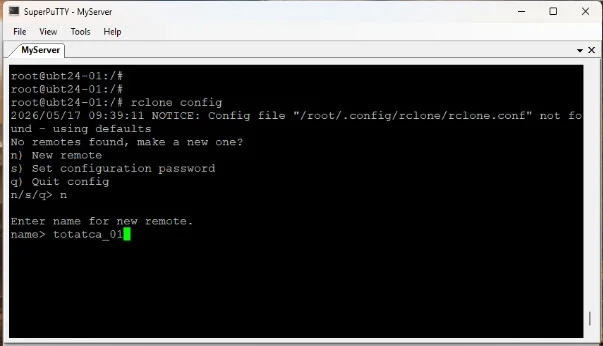
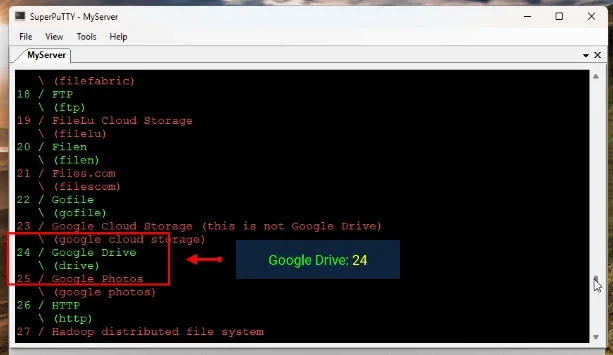
Select the Google Drive option from the list. The number assigned to Google Drive may vary depending on the Rclone version; for many versions, it is 24 or similar.
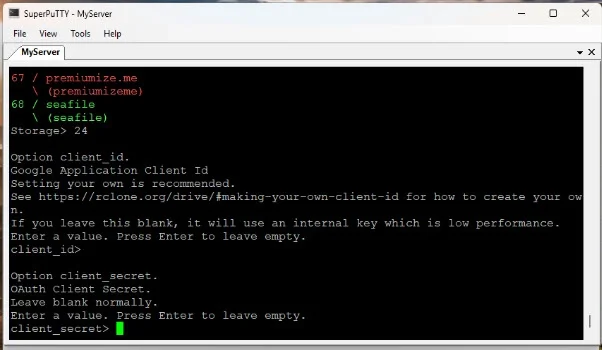
Leave the Client_ID and Client_Secret fields blank by pressing Enter to use the default settings.
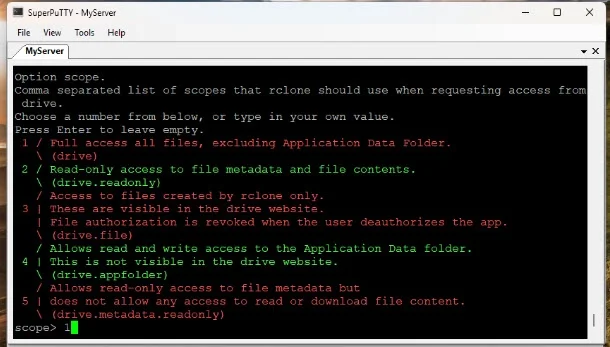
Choose the access scope that fits your needs. For full control, select option 1 (full access to Google Drive).
Leave the Service Account File field blank by pressing Enter.
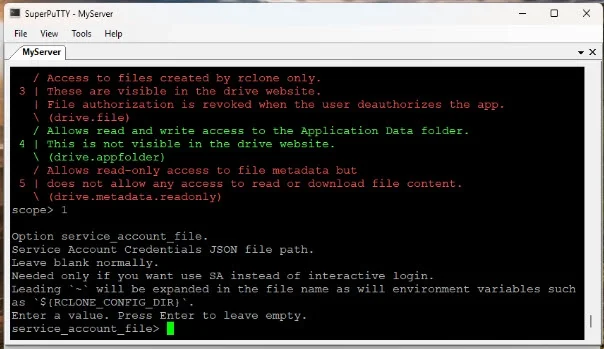
When asked about advanced configuration, select n to continue with standard setup.
Choose n when asked to use auto config, so you can manually authenticate on another device.
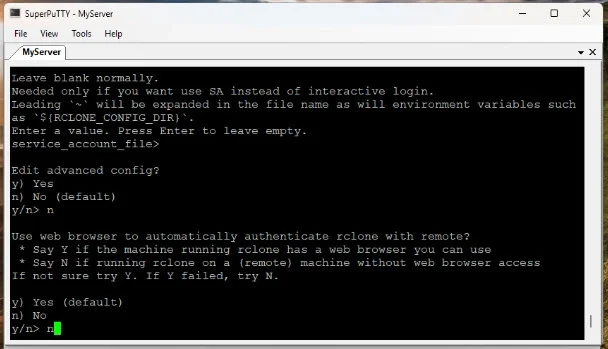
Because Rclone requires Google authentication via a web browser, you will perform this on your local machine or another device for convenience.
- Visit the official Rclone website and download the appropriate Rclone version for your operating system (e.g., Windows).
- Extract the downloaded archive.
- Open a Terminal or Command Prompt window inside the extracted folder by right-clicking on an empty area and selecting the Terminal option.
Back on the server where you launched the Rclone config, copy the rclone authorize command provided.
rclone authorize "drive" "xyz..."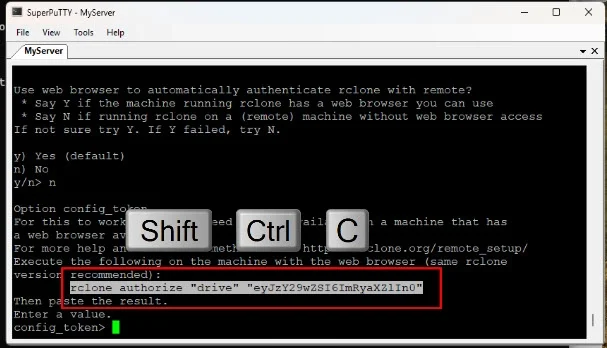
Paste and run this command in the Terminal on your local machine.
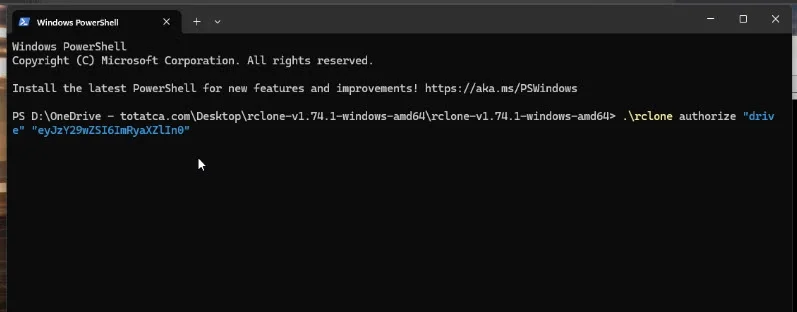
This will open a web browser prompting you to sign into your Google account associated with Drive.
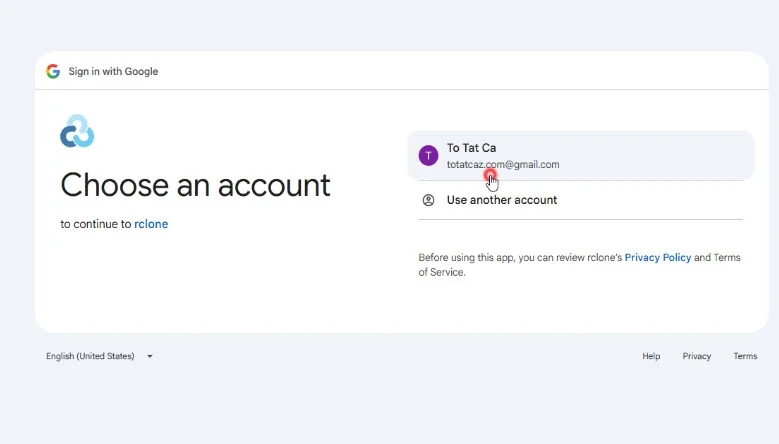
After successful authentication, a token will be generated and displayed in the Terminal.
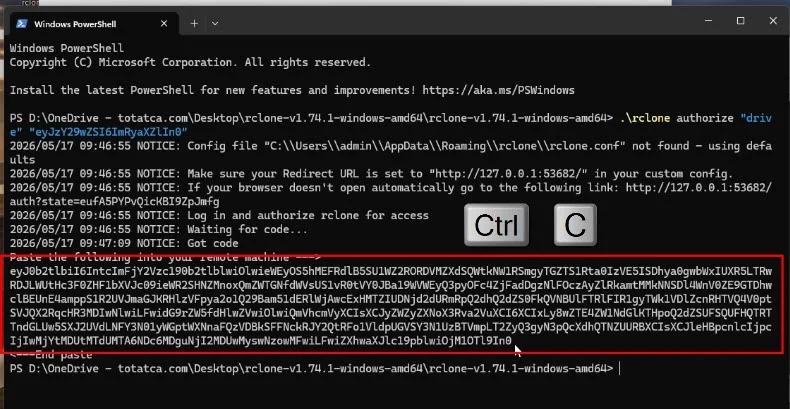
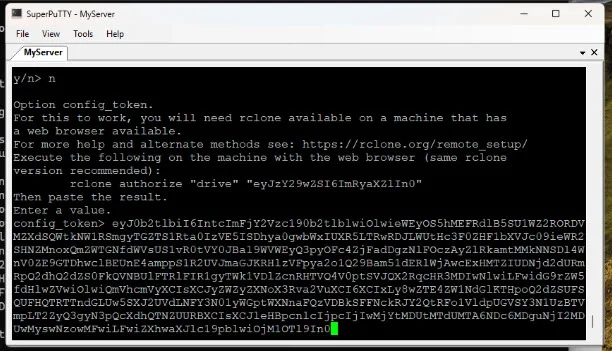
Copy this token and paste it back into the Rclone configuration on your server when prompted.
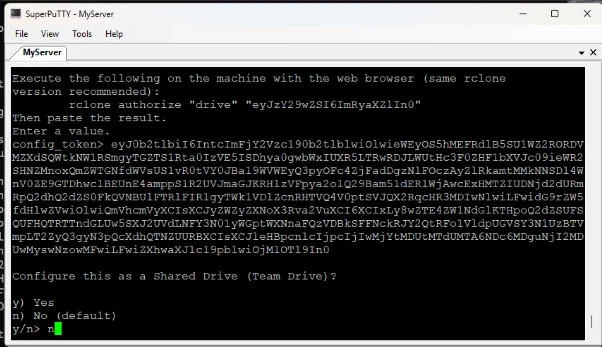
When asked about using Shared Drives, select n unless you want to configure Shared Drive access.
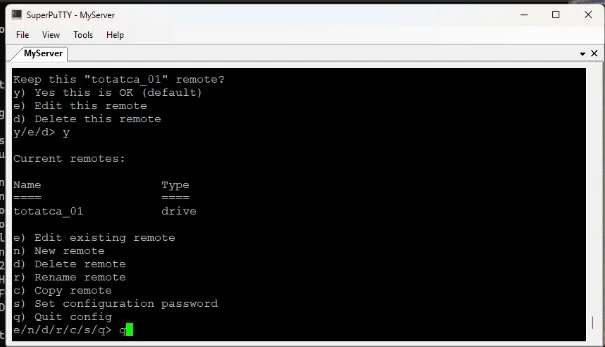
Finally, save the configuration by selecting y and exit the setup by typing q.
Verifying Google Drive Connection
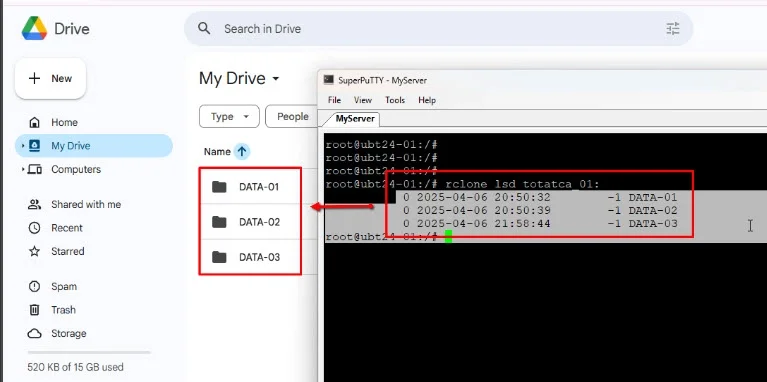
To confirm that Rclone can access your Google Drive, list the contents of your Drive using the connection name you set earlier (e.g., gdrive):
rclone lsd totatca_01:If successful, you will see a list of folders and files from your Google Drive displayed in the terminal.
Setting Up Folder Synchronization
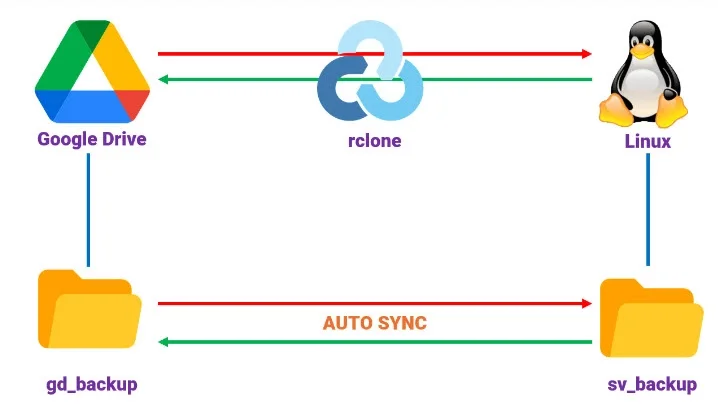
Next, create folders on both Google Drive and your server to serve as synchronization points.
- Create a folder named gd_backup in Google Drive to store backup data.
- Create a corresponding folder named /mnt/sv_backup on your Linux server.
This structure will allow you to synchronize data between the server and Google Drive efficiently.
Automating Synchronization with a System Service
To ensure automatic synchronization even after system reboots, set up a systemd service for Rclone.
Create a new service file and name it something memorable, for example, rclone-totatca_01.service.
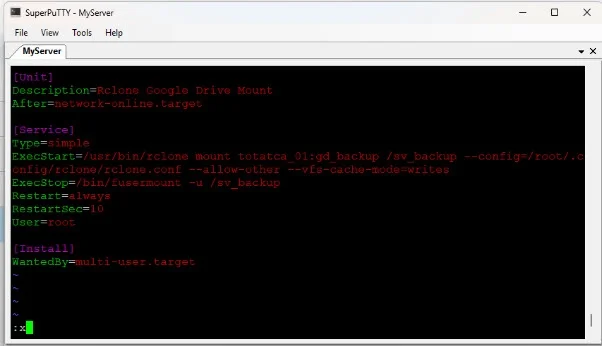
sudo vim /etc/systemd/system/rclone_totatca_01.serviceThe service configuration should include commands to synchronize between the local backup folder and Google Drive. Replace placeholders with your actual Rclone remote name and folder names.
Example service configuration content:
[Unit]
Description=Rclone Google Drive Mount
After=network-online.target

[Service]
Type=simple
ExecStart=/usr/bin/rclone mount totatca_01:gd_backup /mnt/sv_backup --config=/root/.config/rclone/rclone.conf --allow-other --vfs-cache-mode=writes
ExecStop=/bin/fusermount -u /mnt/sv_backup
Restart=always
RestartSec=10
User=root

[Install]
WantedBy=multi-user.target
Copy this content into the service file using your preferred text editor (e.g., nano or vim), then save and exit.
Managing the Rclone Service
Reload systemd to recognize the new service:
sudo systemctl daemon-reloadEnable and start the Rclone synchronization service so it runs on boot and immediately:
sudo systemctl enable rclone-totatca_01.service
sudo systemctl start rclone-totatca_01.service
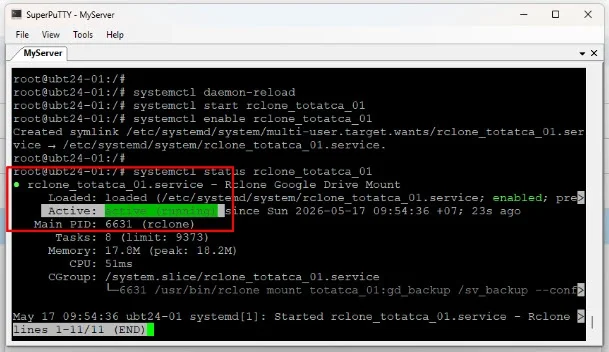
Check the service status to ensure it is running properly:
sudo systemctl status rclone-totatca_01.serviceAn active status indicates the synchronization service is operational.
Testing the Synchronization
Navigate to your server backup folder and create a test file.
Verify that this file is automatically uploaded to the gd_backup folder in Google Drive.
Similarly, upload a file to the gd_backup folder on Google Drive and check that it synchronizes back to the server’s backup folder.
Note that synchronization speed depends on your network connection and server performance.
Conclusion
By following these steps, you can seamlessly integrate Google Drive with your Linux server using Rclone. This setup automates data synchronization, making backups easier and more reliable. Whether you are securing website data or managing server files, Rclone offers a flexible and efficient solution for cloud storage integration.