Grok, the AI assistant from xAI, has introduced a groundbreaking Memory feature that allows it to learn from your interactions, making it feel like a true personal helper rather than just a basic chatbot. This update is timely for anyone seeking more efficient and intuitive AI experiences, as it enhances long-term context understanding and saves time by reducing the need for repetitive prompts. In this article, we’ll explore what this feature is, why it matters, and how to get it started.
Why You Should Enable Memory on Grok
The Memory feature transforms Grok from a standard AI tool into a personalized assistant by remembering your preferences, past conversations, and interaction styles. This means Grok can provide more relevant responses without you having to explain yourself every time, making it ideal for busy professionals, students, or anyone who relies on AI for daily tasks.
Key benefits include better long-term context understanding, which helps Grok maintain conversations over time; time savings by eliminating redundant prompts; more natural interactions that feel conversational; and flexible data controls that let you manage what Grok remembers. This feature is especially useful for users who want AI to adapt to their unique needs, such as writers customizing response styles or business users streamlining workflows.
Step-by-Step Guide to Activating Memory on Grok
Enabling the Memory feature is straightforward and only takes a few minutes. Follow these steps to personalize your Grok experience:
Go to your Profile. From the main dashboard, look for the navigation menu on the left side and click on the Profile icon at the bottom and select the Settings option.
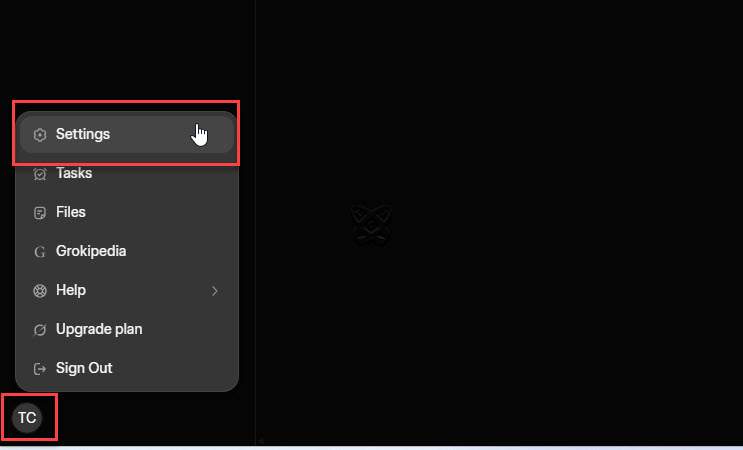
Go to your profile. From the homepage, locate the navigation menu on the left, click the profile icon at the bottom, and select Settings.
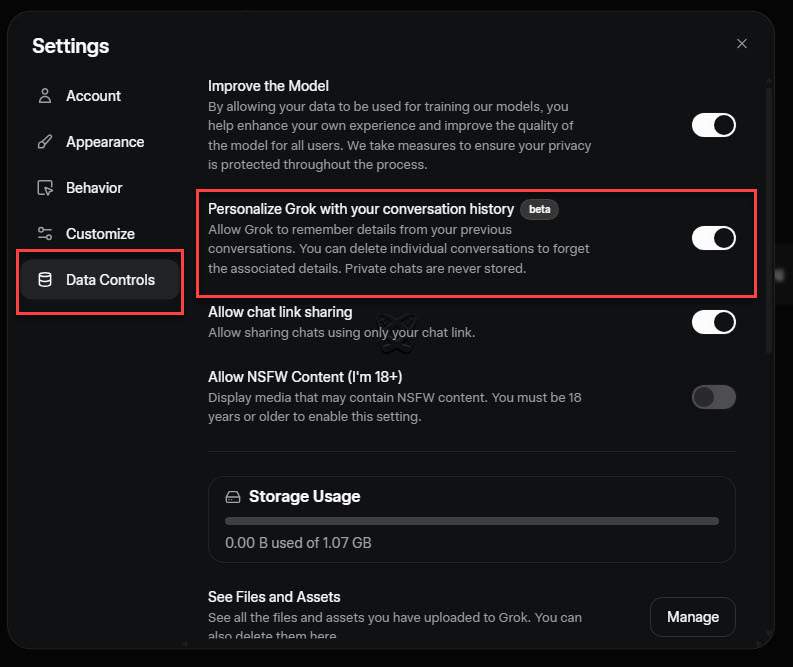
When the Settings window opens, choose Data Controls from the left menu, then enable the option “Personalize Grok with your conversation history” to activate this feature.
Tips for Optimizing Grok’s Memory Feature
To get the most out of Grok’s Memory, provide clear feedback during chats so it can learn effectively from your inputs. For instance, start with 1-2 sessions to outline your profession, goals, and preferred response styles, which Grok will then use to tailor future answers.
Additionally, regularly review and manage your data settings to ensure privacy while allowing useful information to be retained. This practical approach can lead to more accurate and efficient AI assistance in real-world scenarios, like research or creative projects.
Conclusion
In a world where AI is becoming essential for productivity, Grok’s Memory feature stands out by offering personalized, context-aware support that adapts to your life. By enabling it today, you’re taking a step toward a smarter, more intuitive digital assistant that truly understands you.