What are Hiberfil.sys and Pagefile.sys?
It’s quite common to find yourself in a situation where your C: drive is almost full, and you stumble upon two unfamiliar files: hiberfil.sys and pagefile.sys. These files can occupy significant space, sometimes adding up to almost 20 GB.
This raises questions like: “What are these files? Are they unnecessary clutter created by Windows? Is it safe to delete them?” If these thoughts have crossed your mind, you’re not alone. Many users hastily try to remove these files, only to encounter various issues later. However, they are crucial components that contribute to the stable operation of Windows.
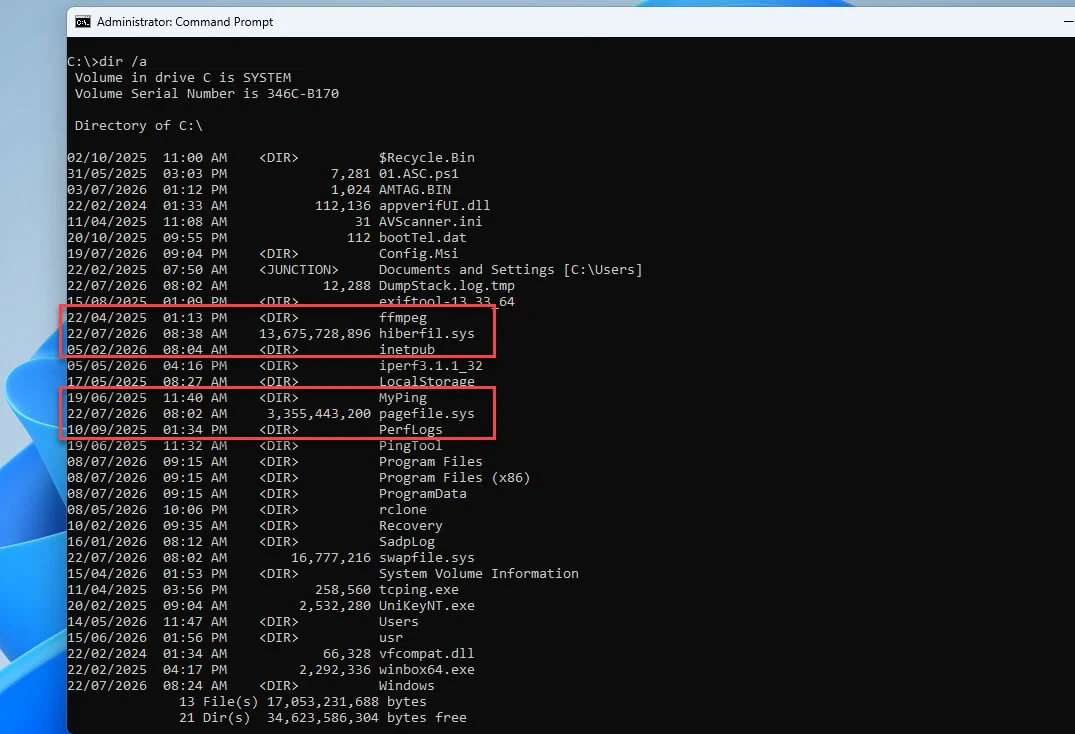
Hiberfil.sys: The Time Machine of Windows
Imagine you are working with multiple applications open:
- Dozens of Chrome tabs
- A Word document
- Several Photoshop files
- An Excel spreadsheet full of data
Now, let’s say you need to shut down your laptop quickly. If you choose to Shutdown, everything will be lost and you’ll have to reopen all applications and documents when you power it back on. However, if you opt for Hibernate, Windows saves everything you were working on into a file called hiberfil.sys.
This process is akin to taking a gigantic snapshot of your RAM, which allows you to turn off your machine completely without using any power. Upon rebooting, Windows will read the contents of hiberfil.sys and restore your previous session exactly as you left it, with all windows and applications back in their original state. This is why many refer to Hibernate as a “sleeping” mode, while I prefer to think of it as a time machine that instantly brings back your workspace.
Why is Hiberfil.sys So Large?
This isn’t difficult to understand. To save the entirety of your RAM, sufficient space is necessary. The more RAM you have, the larger the hiberfil.sys file will be. For instance, a laptop with 16 GB of RAM can create a file of over 10 GB, while 32 GB of RAM could result in a >20 GB file. It’s not a bug, nor is it useless; it’s simply a memory requirement for the easy recovery of your working session.
Fast Startup Also Relies on Hiberfil.sys
What many don’t realize is that even if you haven’t used Hibernate, Windows still utilizes hiberfil.sys thanks to the Fast Startup feature. Instead of completely shutting down the operating system, Windows saves part of the system kernel to hiberfil.sys before powering off. This way, during the next boot, it can read this data instead of loading everything from scratch, resulting in significantly faster startup times.
Should You Disable Hiberfil.sys?
The answer is: it depends. If you regularly use the Shutdown option and never use Hibernate, nor do you care about booting up a few seconds faster, then disabling this function is reasonable and will free up considerable space on your C: drive.
On the other hand, if you frequently use your laptop for meetings, have multiple applications open, or prefer to resume work quickly, keeping hiberfil.sys is worthwhile. It’s a trade-off between storage capacity and convenience.
How to Disable Hiberfil.sys
You don’t have to manually search for and delete the file; Windows provides a simple command to do this. Open the Command Prompt or Windows Terminal as an Administrator and enter:
powercfg -h off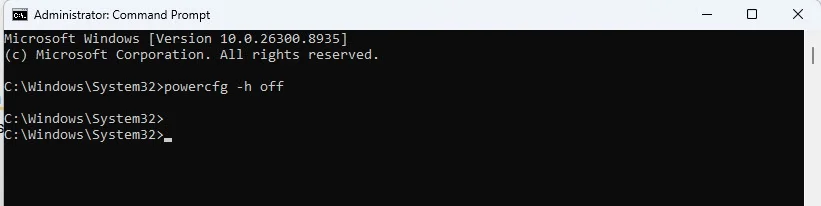
Once you press Enter, Windows will disable Hibernate, also turning off Fast Startup, and automatically delete hiberfil.sys. If you change your mind later and want to re-enable it, simply enter:
powercfg -h on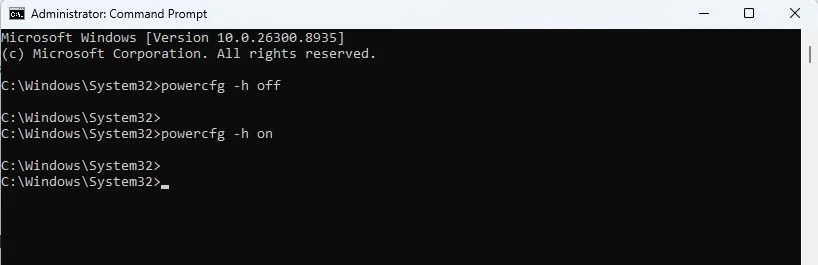
Pagefile.sys: The Silent Hero
While hiberfil.sys serves as a time machine, pagefile.sys acts as a quiet assistant working behind the scenes. You may not notice it, but its absence can lead to chaos.
To visualize this, think of your RAM as a large desk where you work. A bigger desk accommodates more documents, but eventually, it can become cluttered. Similarly, when your RAM fills up, Windows moves less frequently used data to pagefile.sys to allow your system to prioritize active applications. This mechanism is known as Virtual Memory.
Is Pagefile.sys Necessary with High RAM?
This is a misconception many have. While it seems logical to assume that with ample RAM, virtual memory isn’t needed, Windows is designed to use pagefile.sys regardless of your RAM size. This file not only compensates when RAM is low but also supports several internal memory management mechanisms.
If you disable it entirely, you might not notice any immediate problems. However, when you attempt to open resource-intensive applications like games, 4K video editing software, or virtual machines, you may encounter issues such as application crashes and out-of-memory errors, even if there’s sufficient RAM remaining. This is because pagefile.sys plays an essential role in system stability.
Should You Disable Pagefile.sys?
Unlike hiberfil.sys, the recommendation here is clear: do not disable pagefile.sys just to save a few gigabytes. Even Microsoft recommends that Windows manage the size of this file automatically. Modern operating systems are equipped to resize pagefile.sys based on usage, balancing performance and storage needs. If your C: drive is too full, you may think about reducing its size or relocating it to another drive with more space, but complete deactivation should only be considered by those who thoroughly understand the implications.
Read more
- FIX ERROR – The referenced account is currently locked and may not be logged on to in Windows 10/11
- FIX ERROR – The referenced account is currently locked and may not be logged on to in Windows 10/11
- How to Upgrade Windows 11 Home to Windows 11 Professional
- How to Install Windows Server 2025 on Hyper-V (Step-by-Step Tutorial)
- How to Open Ports in Windows Firewall on Windows
Conclusion
When you see hiberfil.sys and pagefile.sys taking up several gigabytes on your C: drive, it’s natural to want to delete them to reclaim space. However, it’s essential to recognize that the space they occupy represents a trade-off for critical Windows functionalities.
Hiberfil.sys allows for fast booting and restoring your previous work session. If you rarely use Hibernate or Fast Startup, turning it off makes sense for freeing up disk space.
On the contrary, pagefile.sys is vital for memory management and system stability. Regardless of how much RAM your system has, allowing Windows to manage pagefile.sys remains the safest and recommended choice in most scenarios.
Therefore, before deleting any system files simply because they seem too large, take a moment to understand their roles. Those gigabytes are not wasted but instead work silently to keep your computer running smoothly, efficiently, and reliably every day.