A fast internet connection doesn’t always mean your local network is performing at its best. Your Ethernet cables, network switches, routers, Wi-Fi access points, and network adapters can all affect the speed of data transfers between devices.

LAN Speed Bench is a Windows desktop application designed to measure local network performance using the powerful iperf3 testing engine. With an intuitive interface, real-time speedometer, live performance graphs, and detailed test history, LAN Speed Bench makes network benchmarking easier and more accessible.
Whether you’re an IT administrator, network engineer, technician, or home networking enthusiast, LAN Speed Bench helps you understand the performance of your local network.

Why Test Your LAN Speed?
Traditional internet speed tests measure the connection between your computer and a remote internet server. These results are useful for checking your internet service provider, but they don’t necessarily reflect the performance of your internal network.
For example, a computer may have a 1 Gbps Ethernet connection, but actual data transfers across the LAN can be significantly slower because of network congestion, hardware limitations, or configuration issues.
LAN Speed Bench measures throughput directly between two devices on your network, helping you:
- Evaluate Ethernet and Wi-Fi network performance.
- Test network switches, routers, and access points.
- Compare network performance across different connections.
- Identify potential LAN bottlenecks.
- Verify network performance after hardware or configuration changes.
- Measure actual TCP and UDP throughput.
Key Features
1. Real-Time Speedometer
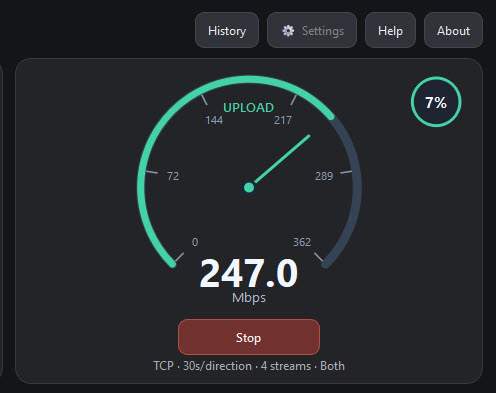
LAN Speed Bench features a modern speedometer that displays measured network throughput in Mbps.
During a test, the speedometer needle and colored progress arc update according to the measured transfer speed. A separate progress indicator shows the elapsed percentage of the current test.
This makes it easy to monitor changes in throughput without relying on command-line output.
2. Built-in Server and Client Modes
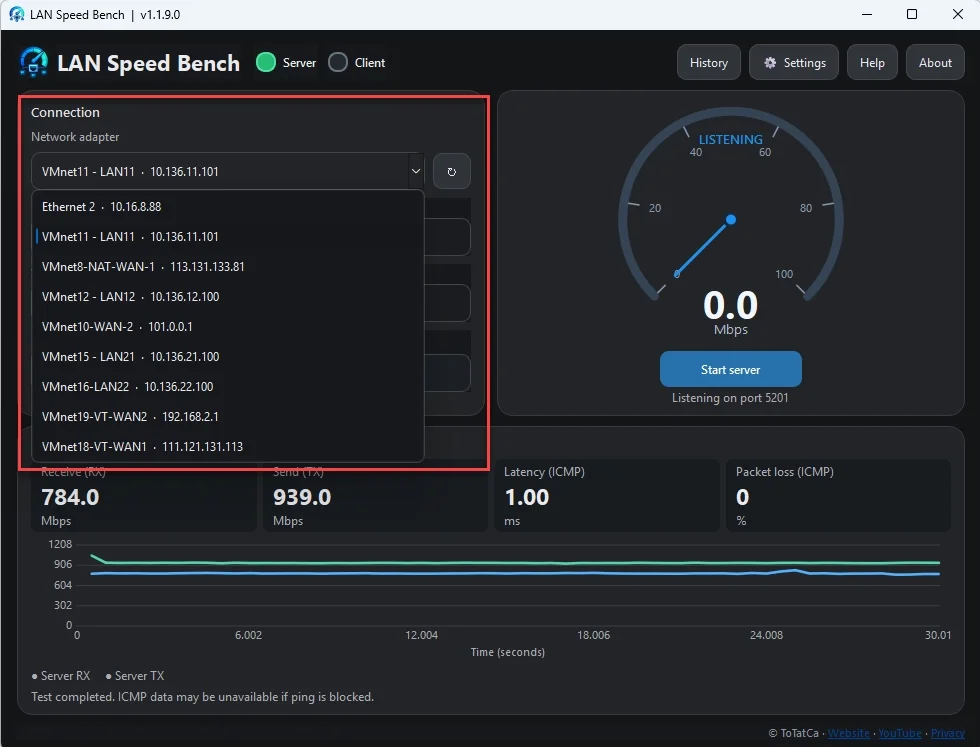
LAN Speed Bench supports both Server and Client modes within the same application.
Server Mode: Start a testing server on one Windows computer and wait for incoming connections.
Client Mode: Connect to the Server computer using its IP address and run a network performance test.
You don’t need separate applications for each computer. Install LAN Speed Bench on both devices and select the appropriate mode.
3. TCP and UDP Performance Testing
Powered by iperf3, LAN Speed Bench supports two widely used network testing protocols:
TCP Testing
Measure TCP throughput to evaluate how efficiently data can be transferred between devices under TCP flow and congestion control.
UDP Testing
Measure throughput using a configurable target bitrate. UDP testing can also provide packet-loss information reported by iperf3.
Both protocols are useful for identifying different network performance characteristics.
4. Upload and Download Speed Measurements
LAN Speed Bench supports three test directions:
- Upload: Measure throughput from the Client to the Server.
- Download: Measure throughput from the Server to the Client.
- Both: Run Upload and Download tests sequentially.
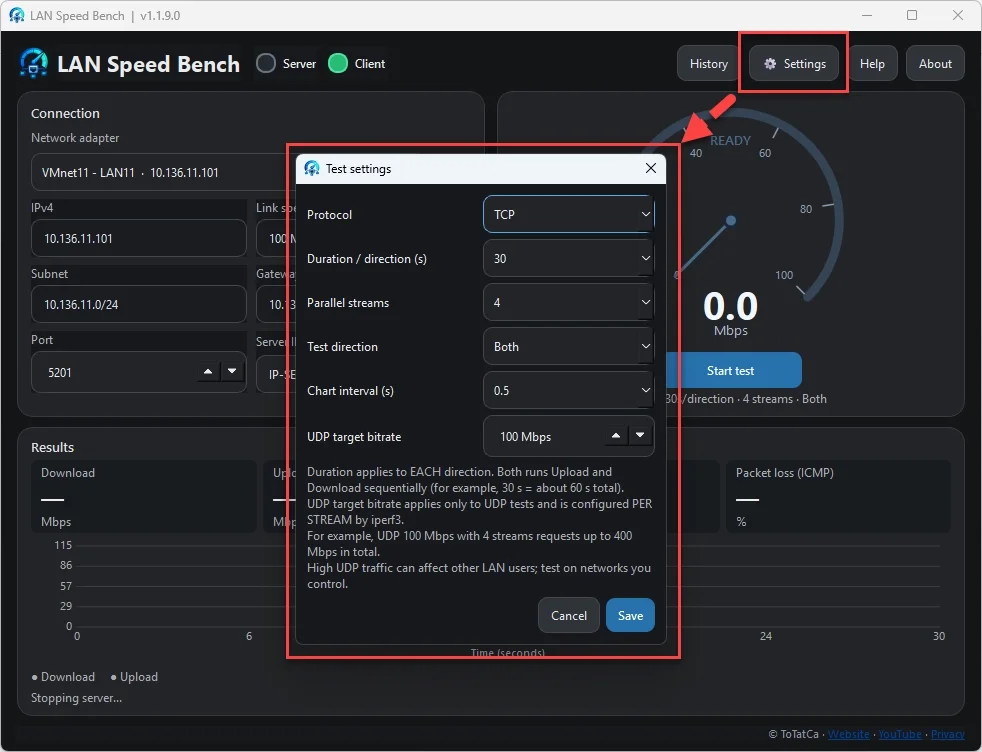
Users can configure test duration, parallel streams, protocol, reporting interval, and UDP target bitrate.
Available test durations include 10, 30, 60, 120, and 180 seconds per direction.
5. Live Network Performance Graphs
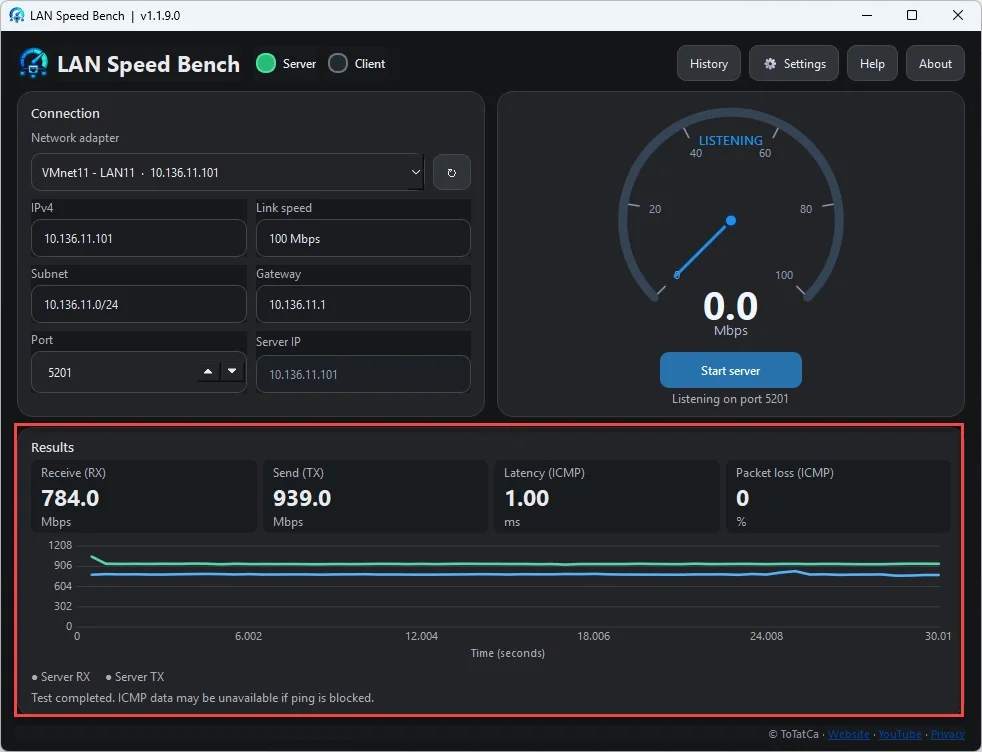
In addition to the speedometer, LAN Speed Bench displays real-time throughput charts.
The application plots upload and download measurements separately, allowing users to review speed variations throughout a test.
The Server also displays locally measured throughput using iperf3’s streaming output.
6. Latency and Packet Loss Information
After a completed Client test, LAN Speed Bench can perform ICMP measurements to provide additional network information, including:
- Average ICMP latency in milliseconds.
- ICMP packet loss percentage.
These results help complement throughput measurements when evaluating network connectivity.
ICMP information may be unavailable if ping traffic is blocked by firewall or network policies.
7. Test History and Excel Export
LAN Speed Bench automatically saves completed test results in a local SQLite database.
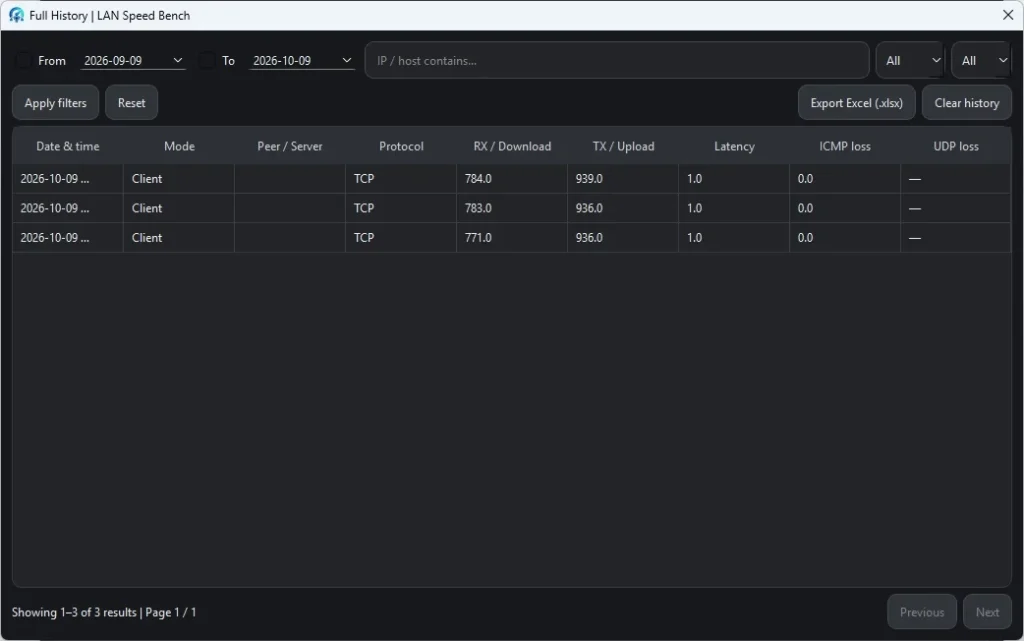
The History window allows users to review previous tests and filter results by date, host, operating mode, or protocol.
You can also export test history to Microsoft Excel (.xlsx) for documentation, comparison, and reporting.
Exported information includes timestamps, operating mode, peer or server address, protocol, throughput measurements, latency, and packet-loss results.
8. Modern Windows Desktop Interface
LAN Speed Bench provides a clean, dark-themed interface designed for everyday network testing.
The main dashboard brings together network adapter information, IP addresses, connection speed, test controls, live measurements, and performance charts.
It also includes a connection guide, firewall configuration instructions, and a Server connection test tool.
How to Use LAN Speed Bench
Getting started requires two computers connected through a network that allows communication between them.
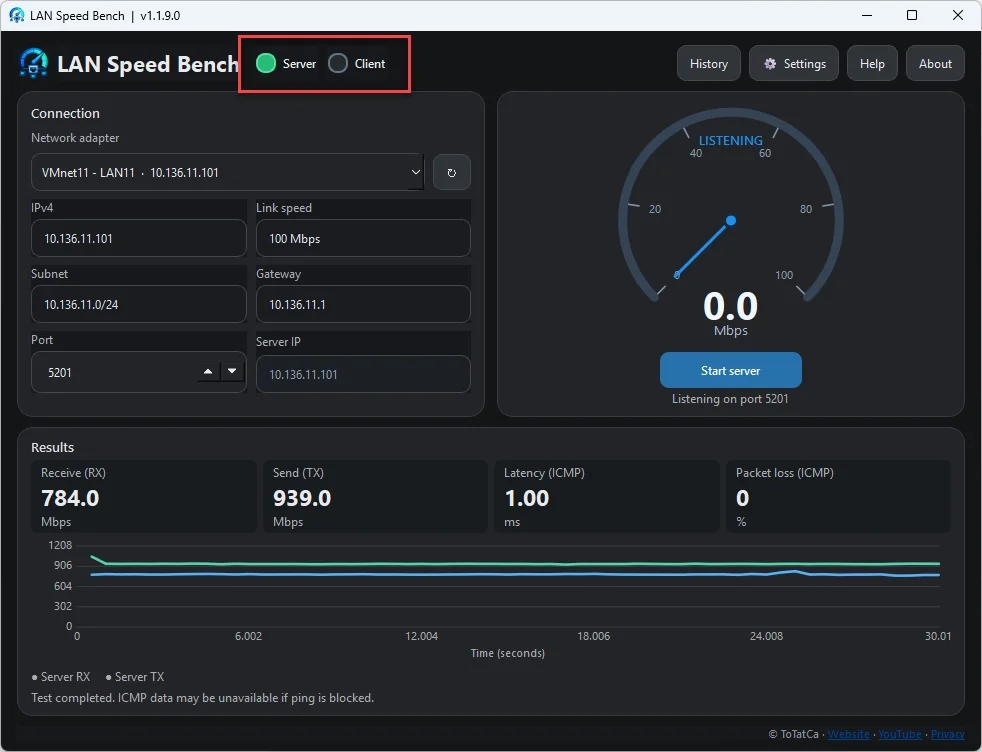
Step 1 – Start the Server
- Install and open LAN Speed Bench on the first Windows computer.
- Select Server, choose the listening port (default:
5201), and click Start server.
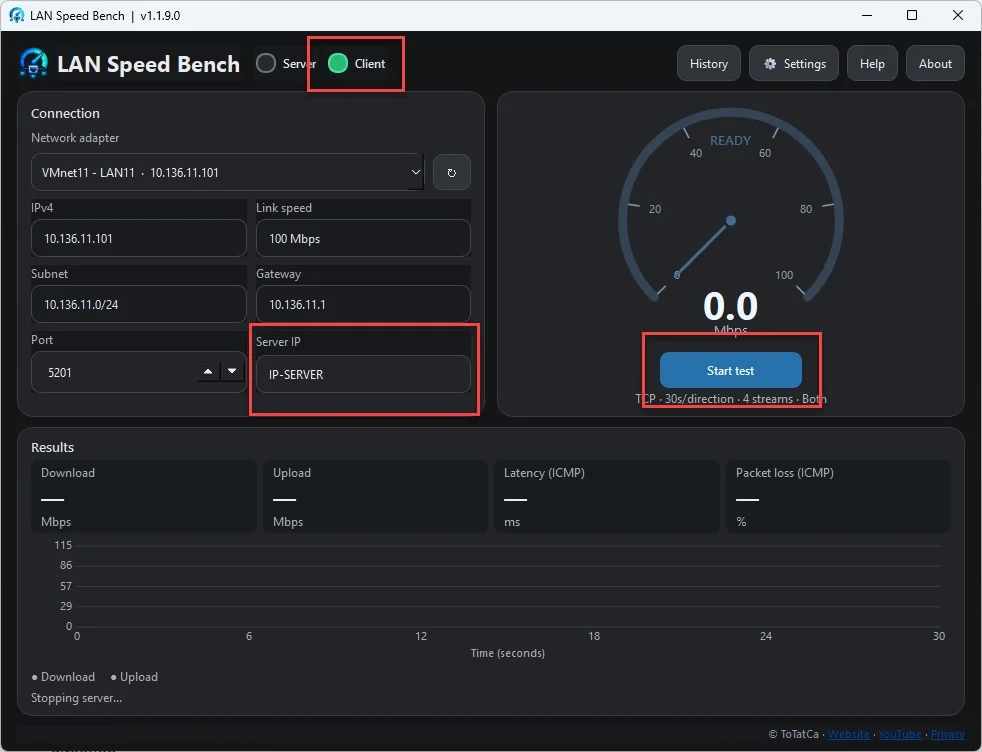
Step 2 – Configure the Client
- Open LAN Speed Bench on the second computer.
- Select Client and enter the Server computer’s IP address.
- Make sure the Server and Client use the same testing port.
Step 3 – Configure Your Test
- Open Settings and choose your preferred protocol, duration, number of parallel streams, and test direction.
Step 4 – Run the Test
- Click Start test.
Watch the speedometer and live charts as LAN Speed Bench measures throughput between the two devices.
Step 5 – Review and Export Results
Once the test finishes, review the measured speeds and available latency information.
Open History to compare previous measurements or export your results to Excel.
Firewall note: The Server may require inbound firewall rules for TCP/UDP port 5201 and TCP port 5202 for optional session metadata when using the default port configuration. LAN Speed Bench includes instructions for configuring these rules.
Download LAN Speed Bench for Windows
LAN Speed Bench is designed for Windows desktop computers and uses a Server/Client testing approach to measure local network performance.
The application is being prepared for release through the Microsoft Store.
Download: Microsoft Store download link will be added after publication.
Final Thoughts
Understanding your local network performance shouldn’t require complicated tools or commands.
With its real-time speedometer, interactive throughput charts, TCP/UDP testing, Server/Client modes, and Excel export functionality, LAN Speed Bench provides a practical way to evaluate the speed of your local network.
Test your LAN. Measure real throughput. Understand your network performance.