Accessing the OpenClaw dashboard from outside the machine where it is installed can seem daunting at first. However, with the right steps, you can easily connect to the dashboard from any computer. This guide will walk you through the entire process, ensuring you have everything set up correctly.
Prerequisites
Before you begin, ensure you have the following:
- A Linux server with OpenClaw installed.
Read more: Step-by-Step Guide to Installing OpenClaw on Ubuntu Linux - Access to the terminal on your Linux server.
- A Windows computer to connect from.
- Basic knowledge of using the command line.
Step 1: Update Your Linux System
First, you need to ensure that your Linux system is up to date. Open your terminal and run the following command:
sudo apt update && sudo apt upgradeThis command updates the package lists and upgrades any outdated packages.
Step 2: Install OpenSSH Server
Next, you need to ensure that the OpenSSH Server is installed. If it’s not already installed, run the following command:
sudo apt install openssh-serverOnce installed, start and enable the OpenSSH Server to run on boot:
sudo systemctl start ssh

sudo systemctl enable ssh
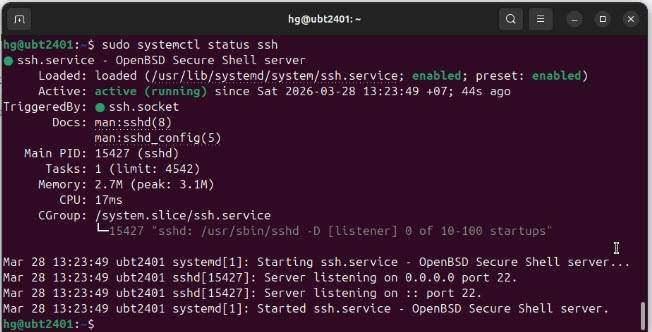
To verify that the OpenSSH Server is running properly, check its status:
sudo systemctl status sshIf the status shows ‘active (running)’, you are ready to proceed.
Step 3: Configure Firewall Settings
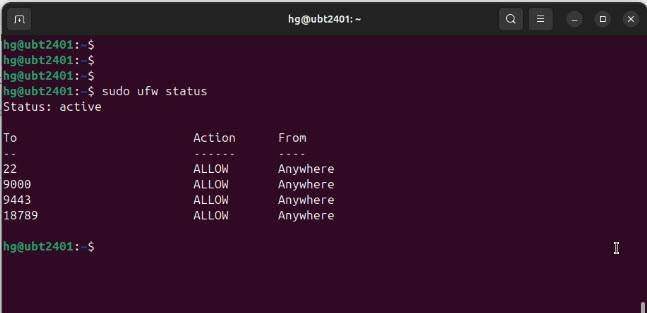
Next, check your firewall settings. If your firewall is active, you need to allow traffic on port 18789, which OpenClaw uses:
sudo ufw allow 18789After allowing the port, check the UFW status again to confirm:
sudo ufw statusYou should see port 18789 listed as allowed.
Step 4: Obtain Your Server’s IP Address
Now, find the IP address of your Linux server. You will need this to connect from your Windows machine:
ifconfigNote down this IP address for later use.
hg@ubt2401:~$ ifconfig

docker0: flags=4099<UP,BROADCAST,MULTICAST>  mtu 1500
        inet 172.17.0.1  netmask 255.255.0.0  broadcast 172.17.255.255
        ether ce:b8:ed:6c:a7:69  txqueuelen 0  (Ethernet)
        RX packets 0  bytes 0 (0.0 B)
        RX errors 0  dropped 0  overruns 0  frame 0
        TX packets 0  bytes 0 (0.0 B)
        TX errors 0  dropped 20 overruns 0  carrier 0  collisions 0

ens32: flags=4163<UP,BROADCAST,RUNNING,MULTICAST>  mtu 1500
        inet 10.16.8.108  netmask 255.255.255.0  broadcast 10.16.8.255
        ether 00:0c:29:a8:b4:0d  txqueuelen 1000  (Ethernet)
        RX packets 137  bytes 97702 (97.7 KB)
        RX errors 0  dropped 0  overruns 0  frame 0
        TX packets 116  bytes 11766 (11.7 KB)
        TX errors 0  dropped 0 overruns 0  carrier 0  collisions 0
        device interrupt 18  base 0x2000

lo: flags=73<UP,LOOPBACK,RUNNING>  mtu 65536
        inet 127.0.0.1  netmask 255.0.0.0
        inet6 ::1  prefixlen 128  scopeid 0x10<host>
        loop  txqueuelen 1000  (Local Loopback)
        RX packets 134  bytes 12392 (12.3 KB)
        RX errors 0  dropped 0  overruns 0  frame 0
        TX packets 134  bytes 12392 (12.3 KB)
        TX errors 0  dropped 0 overruns 0  carrier 0  collisions 0
Step 5: Prepare Your Windows Machine
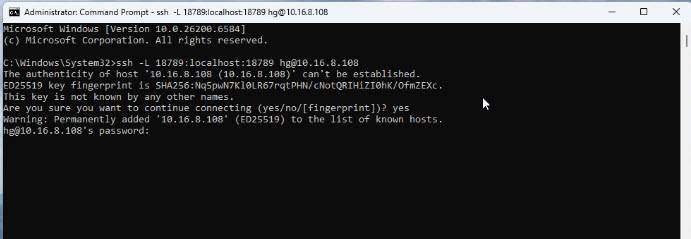
On your Windows computer, open the command prompt with administrator privileges. You will set up an SSH connection to your Linux server:
ssh username@your_server_ip -L 18789:localhost:18789Replace ‘username‘ with your Linux account username and ‘your_server_ip‘ with the IP address you noted earlier. When prompted, type ‘yes‘ to trust the host and enter your password.
Step 6: Access OpenClaw Dashboard
After establishing the SSH connection, you will be brought to the Linux command line. Now, you need to navigate to the OpenClaw installation directory:
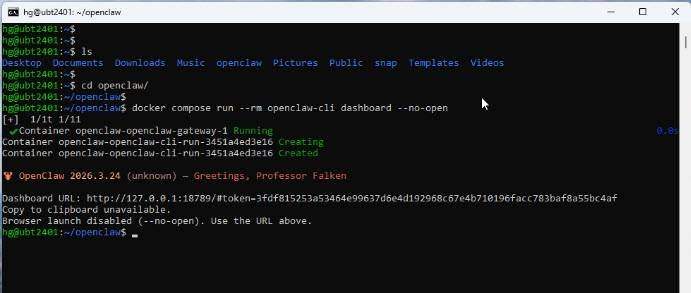
cd /path/to/openclawOnce in the directory, run the docker-compose command:
docker compose run --rm openclaw-cli dashboard --no-openThis command will start the OpenClaw service. In the output, look for a link to access the dashboard. Copy this link.
Step 8: Open the Dashboard in Your Browser
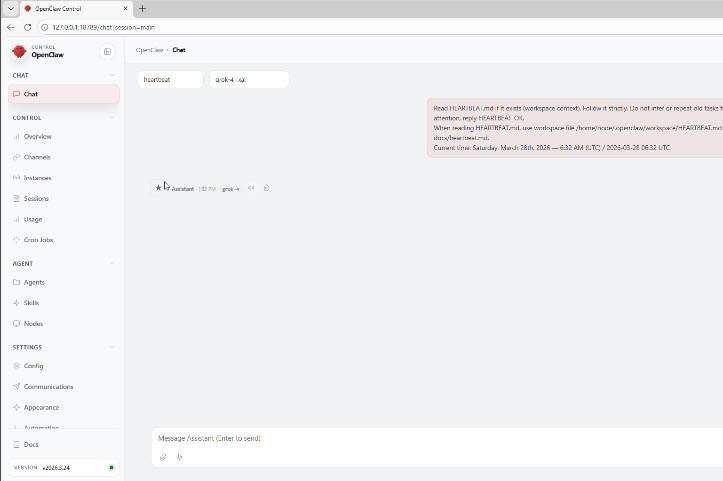
Finally, open your web browser on the Windows machine and paste the copied link into the address bar. You should now have access to the OpenClaw dashboard from your Windows computer!
Troubleshooting Common Issues
If you encounter any errors, such as a pairing required error, refer to the troubleshooting steps provided in the video description for assistance.
By following these steps, you can successfully access the OpenClaw dashboard from any computer. Happy managing!
Read more
- Step-by-Step Guide to Installing OpenClaw on Ubuntu Linux
- Install and Configure OpenSSH Server on Ubuntu / Debian
- How to Install Ubuntu Server 22.04 LTS on VMware Workstation
- How to Install Ubuntu Desktop 24.04 LTS (Noble Numbat) Desktop on VMware Workstation
- Prometheus – Install and Configure Prometheus Server on Ubuntu/Debian