If you’re looking to utilize the Claude models, obtaining your own Claude API key is essential. This guide will walk you through the entire process, ensuring you can connect and make the most out of your Anthropic account.
Key Takeaways
To acquire a Claude API key, you need to create an account with Anthropic and securely generate your key via the Anthropic Console. Remember, this key is displayed only once, so be sure to store it safely. Claude’s API operates on a pay-as-you-go basis, but you can kickstart your journey with free credits.
Understanding the Claude API Key
A Claude API key serves as a unique identifier, allowing you to connect directly to your Anthropic account and access models like Claude Sonnet and Claude Opus. Although it may seem cumbersome to manage your own API key, it offers cost advantages compared to third-party platforms that may charge extra fees. For instance, platforms like Pickaxe allow users to enter their own API keys, facilitating extensive use of AI tools without concerns over credit limitations.
Step-by-Step Guide to Obtaining Your Claude API Key
Step 1: Visit the Anthropic Console and Create Your Account
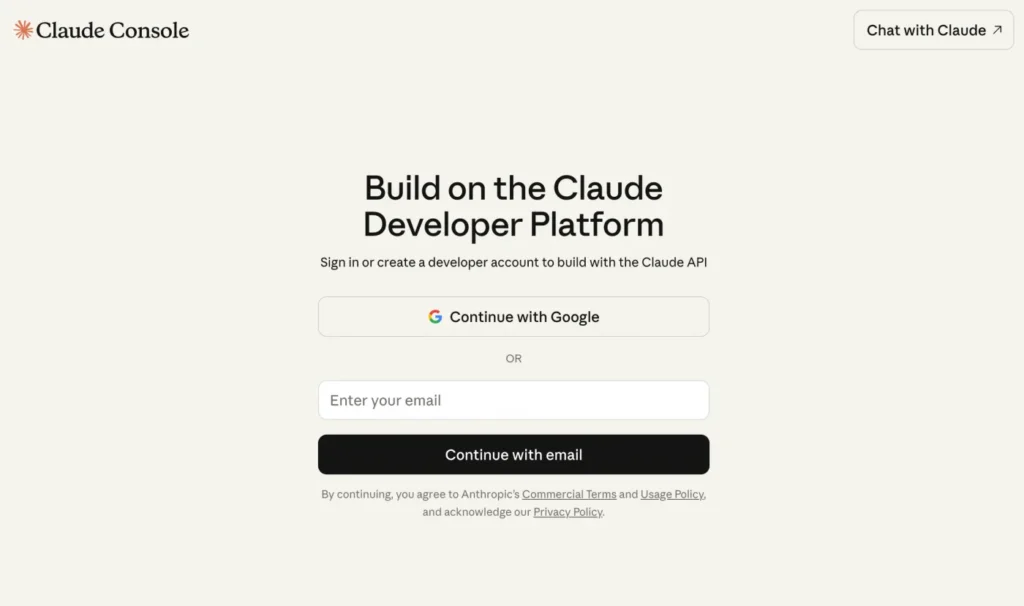
Begin by navigating to the Anthropic Console website. If you don’t have an account, take a moment to create one.
Step 2: Access the API Keys Section
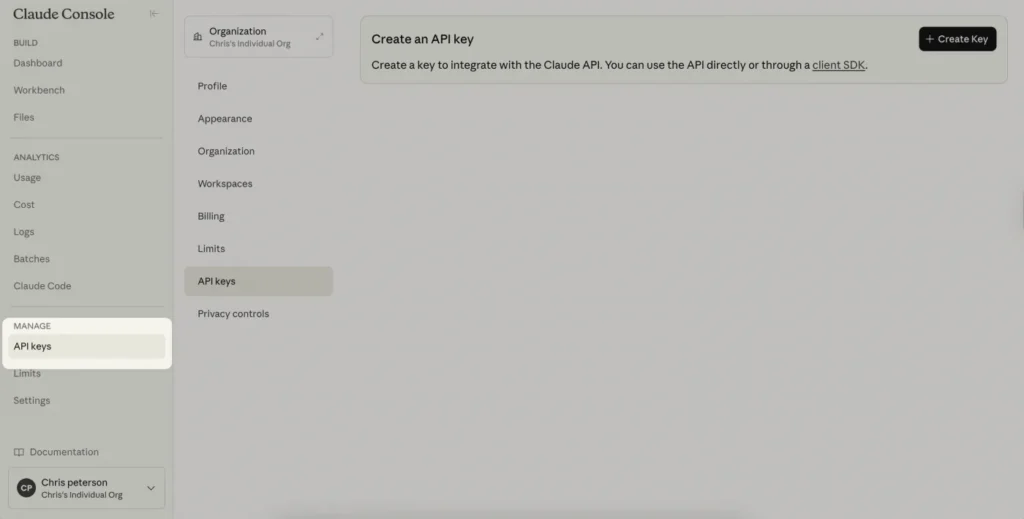
Once you’ve logged in or created an account, you will be directed to your dashboard. Click on the “Start Building” button to access your dashboard, where you can manage billing, usage, and saved prompts. Locate and click on the “API Keys” option.
Step 3: Generate a New Claude API Key
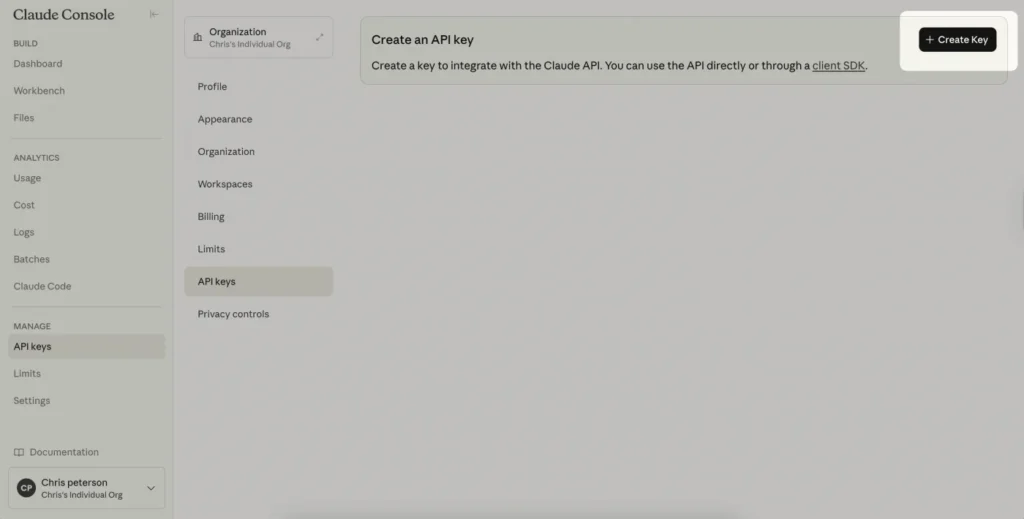
In the API Keys section, you will see any existing keys listed. If you don’t have any, the section will be empty. Click on the “+Create Key” button at the top right corner. A pop-up will prompt you to name your new key. Choose a nickname that helps you identify its purpose, especially if it’s tied to a specific project. Once you’re ready, click “Create Key”.
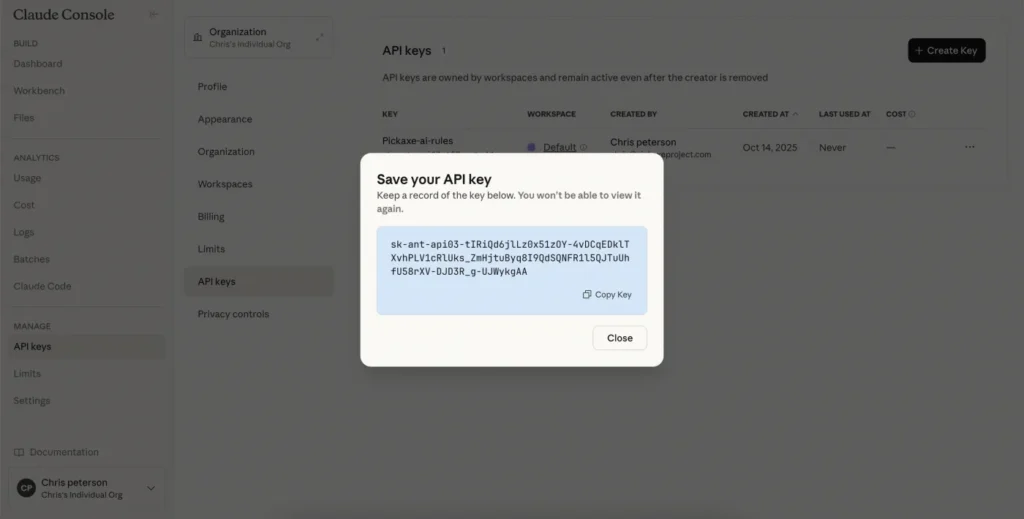
Step 4: Save Your API Key
A window will display your newly generated API key, which is a long string of characters. It’s crucial to save this key securely, as it will only be shown once for security reasons. If you lose your key, you will need to create a new one. Additionally, be cautious about sharing your API key, as it can be used to charge your account.
Managing Your API Key and Billing
You can manage billing for your Claude API key from the Claude API keys dashboard. Here, you’ll find details on usage, costs, and your existing keys. For billing and usage insights, simply click on Cost or Usage in the left-hand navigation bar.
Deleting a Claude API Key
If you decide to delete an API key, navigate to the management tab, find the desired key, click on the three dots on the right, and select “disable” or “delete”.

Conclusion
Claude is increasingly becoming a preferred model for many users, particularly for applications such as chatbots or integrated forms on websites. For those looking to monetize AI tools within a studio framework, Claude Sonnet 3.5 presents a solid choice for various business cases.
Read more
- How to Create Your OpenAI API Key: A Step-by-Step Guide
- FIX ERROR – The referenced account is currently locked and may not be logged on to in Windows 10/11
- FIX ERROR – The referenced account is currently locked and may not be logged on to in Windows 10/11
- How to Access the OpenClaw Dashboard from ANYWHERE
- Samba – Part 3 – Set Up Samba with Separate Read/Write Access for Each User