In the modern Windows ecosystem, installing software doesn’t have to involve downloading .exe files from websites and setting them up manually. Winget, or the Windows Package Manager, allows you to search, install, and update applications quickly using simple command-line commands in Command Prompt or Windows Terminal.
This official Microsoft tool streamlines the process by pulling apps from an online repository, making it a must-have for efficient software management.
What is Winget?
Winget is Microsoft’s official package manager for Windows, enabling users to install and manage applications automatically and swiftly. It works similarly to package managers on other operating systems, allowing you to handle software updates and installations with minimal effort.
Getting Started with Winget
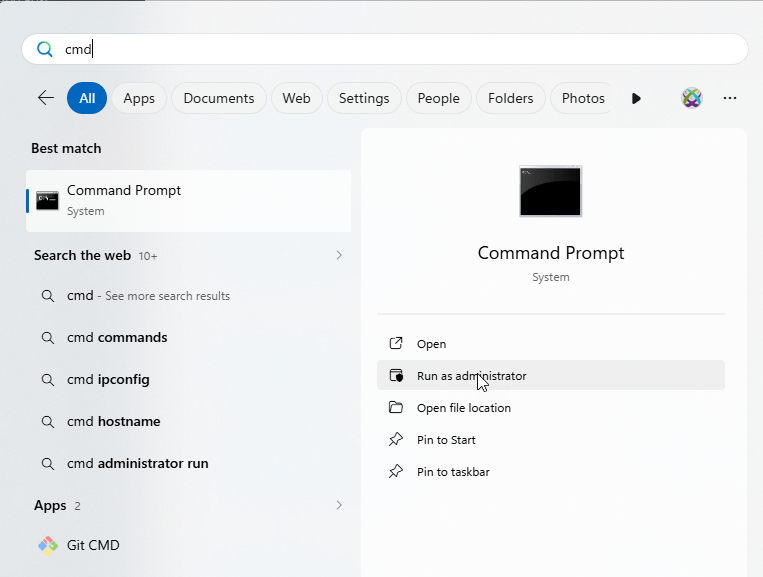
Before you begin, ensure you have the necessary permissions. Here’s how to open Command Prompt as an administrator:
- Press the Start button.
- Type “CMD” and select it.
- Choose “Run as Administrator” to grant the required privileges for installing software.
Searching for Software
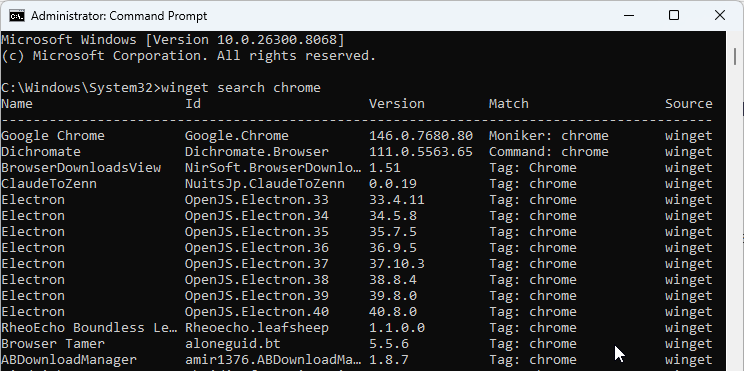
Once you’re in the Command Prompt, you can search for available applications in Winget’s repository. For example, use the command:
winget search chromeThis will display a list of relevant apps, such as Google Chrome, helping you find what you need quickly.
Installing Software
After identifying the app, install it with a straightforward command. For instance:
winget install Google.ChromeOther common examples include:
winget install VideoLAN.VLCfor VLC Media Playerwinget install 7zip.7zipfor 7-Zipwinget install Microsoft.VisualStudioCodefor Visual Studio Code
These commands automatically download and install the software, saving you time and effort.
Installing Multiple Programs at Once
Winget makes it easy to install several applications in sequence by running multiple commands or creating a list. This feature is ideal for setting up a new computer or after a fresh Windows installation, allowing you to automate the process.
Updating and Managing Software
To keep your installed apps up to date, use the command:
winget upgrade --allThis checks for and applies updates to all your Winget-installed applications. Additionally, you can export your software list with:
winget export -o apps.jsonAnd import it later on another machine using:
winget import -i apps.jsonThis helps in quickly restoring your setup.
Why Use Winget?
Using Winget offers numerous benefits, such as faster installation times, the ability to handle multiple apps simultaneously, automatic updates, and compatibility with Windows 10 and 11. It’s especially useful for IT professionals and advanced users who want to manage software efficiently, much like on Linux systems.