Introduction to Remote Desktop Access on Linux via XRDP
If you’re looking to remotely access and control a Linux machine from a Windows computer, similar to how Remote Desktop works on Windows Server, XRDP is an excellent solution.
This guide will walk you through installing and configuring XRDP on Linux Mint, Ubuntu, or other Debian-based distributions.
Installing XRDP on Your Linux Machine
Update Package List
Begin by opening the Terminal on your Linux system. To ensure you have the latest package information, update your system repositories first.
sudo apt updateInstall the XRDP Package
Next, install the XRDP package which enables your Linux system to accept Remote Desktop connections using the RDP protocol.
sudo apt install net-tools xrdp -yAdd XRDP User to ssl-cert Group
For XRDP to establish secure connections using SSL certificates, add the xrdp system user to the ssl-cert group.
sudo adduser xrdp ssl-certVerify Group Membership
Confirm that the xrdp user has been successfully added to the ssl-cert group by listing the group members.
cat /etc/group | grep ssl-cert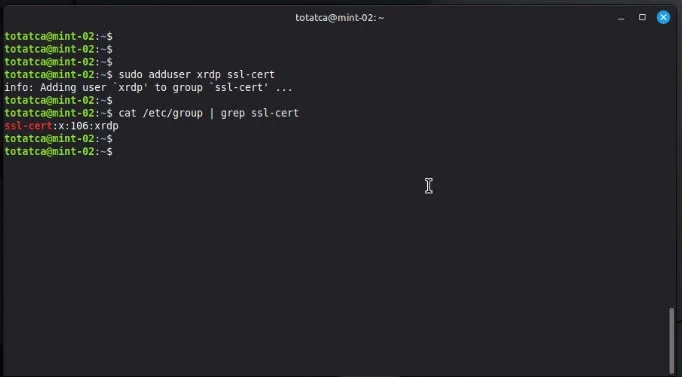
Starting and Enabling XRDP Service
Start XRDP Service
Launch the XRDP service so it begins accepting connections immediately.
sudo systemctl start xrdpEnable XRDP to Start on Boot
Configure the XRDP service to start automatically every time your system reboots.
sudo systemctl enable xrdpCheck XRDP Service Status
Verify that XRDP is running properly by checking its status.
sudo systemctl status xrdp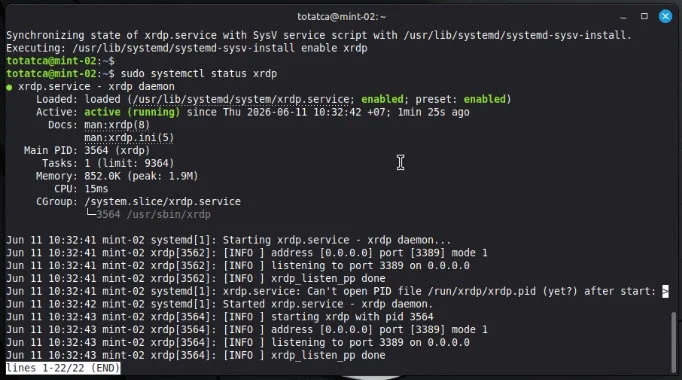
Configuring Firewall to Allow Remote Desktop Connections
Check Firewall Status
Determine if your firewall (UFW) is active on the Linux machine.
sudo ufw statusAllow RDP Port Through Firewall
If the firewall is enabled, allow traffic on port 3389, which is the default port used by XRDP (and Windows Remote Desktop).
sudo ufw allow 3389/tcpConfirm Firewall Rule
Ensure that port 3389 is listed as allowed in your firewall rules.
sudo ufw status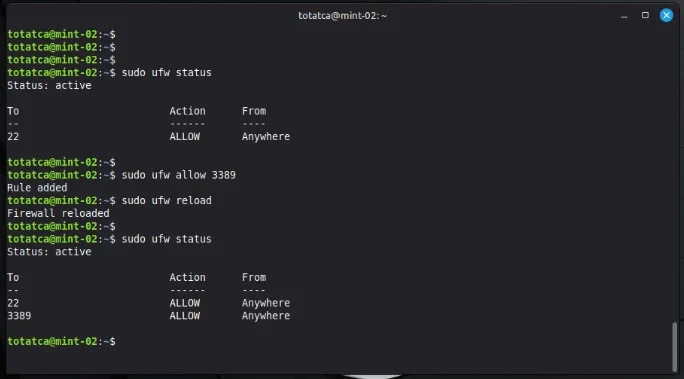
Find Your Linux Machine’s IP Address
To connect from Windows, you need the IP address of your Linux system. Retrieve it by running:
ifconfigLook for the address associated with your active network interface.
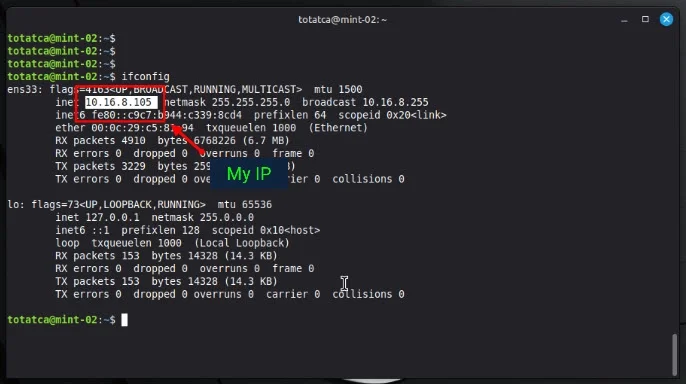
Connecting to Linux from Windows Using Remote Desktop
Before connecting, log out of your current session on the Linux machine to ensure a smooth remote login.
Switch over to your Windows computer and launch the built-in Remote Desktop Connection tool.
- In the Computer field, enter the Linux machine’s IP address obtained earlier.
- Click Connect to initiate the connection.
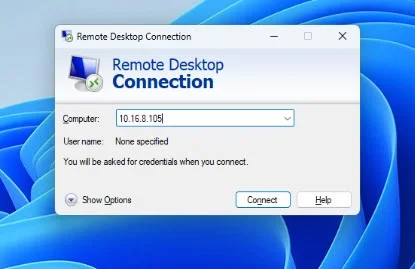
On the XRDP login screen, keep the Session option set to Xorg. Enter the Linux user account credentials you want to access remotely, then click OK.
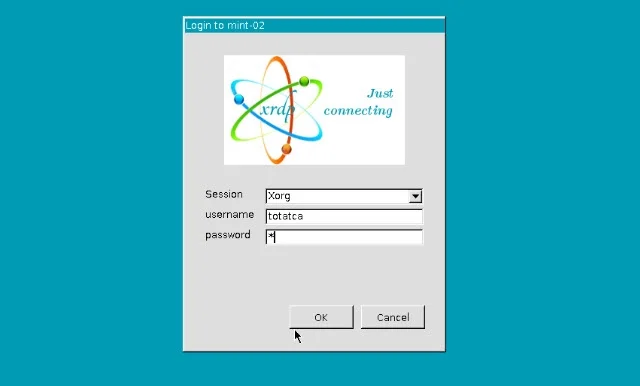
Once authenticated, you will gain full remote access to your Linux desktop environment directly from Windows, confirming that XRDP is configured correctly.

Conclusion
This setup enables seamless Remote Desktop access from Windows to Linux using XRDP. In our previous tutorial, we covered the basics of preparing your Linux machine. Now that you’ve configured XRDP, you can enjoy efficient remote management of your Linux systems. Stay tuned for more guides in this series exploring advanced remote desktop features and security enhancements.